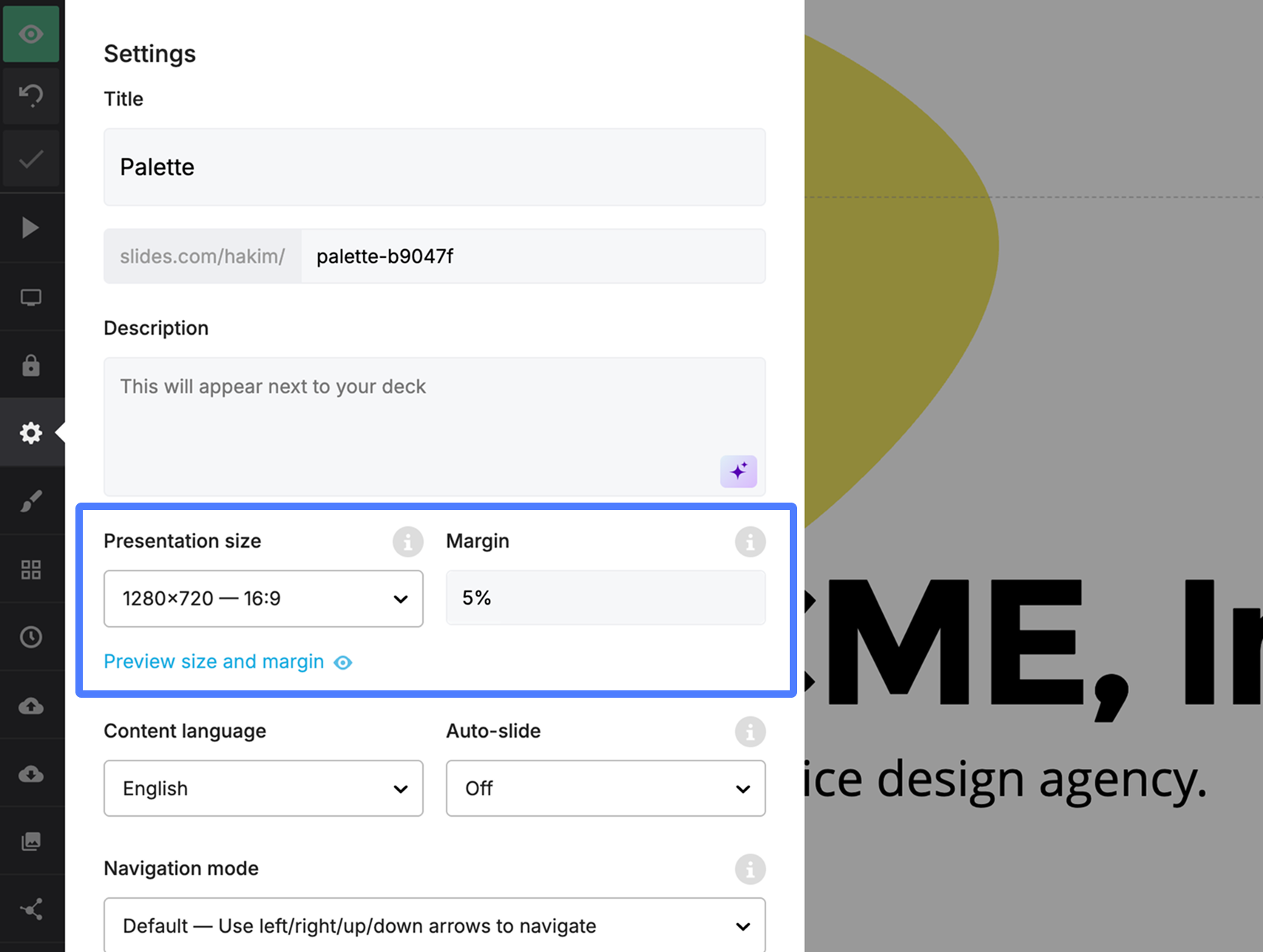
You can change the size of your slides in the presentation settings. Choose from a number of preset sizes or specify your own. All sizes are defined in pixels.
The selected size determines the aspect ratio of your content. Whichever size you select, the presentation still works on any display.
Theme editor
If you're using Slides for Teams, you can set a presentation size in the theme editor. Team members use this size when they create a new deck.
How presentations are scaled
Slides automatically scales your content to fit any display while keeping its original aspect ratio. Presentations use two layers:
1. Content layer
This is where your slide content, such as text and images, lives. Content is scaled to be as large as possible without affecting your original layout.
2. Background layer
This is the layer behind your content that displays the slide background color or image. The background is more flexible and scales to cover 100% of the width and height of the display to avoid letterboxing. Learn more about slide backgrounds.
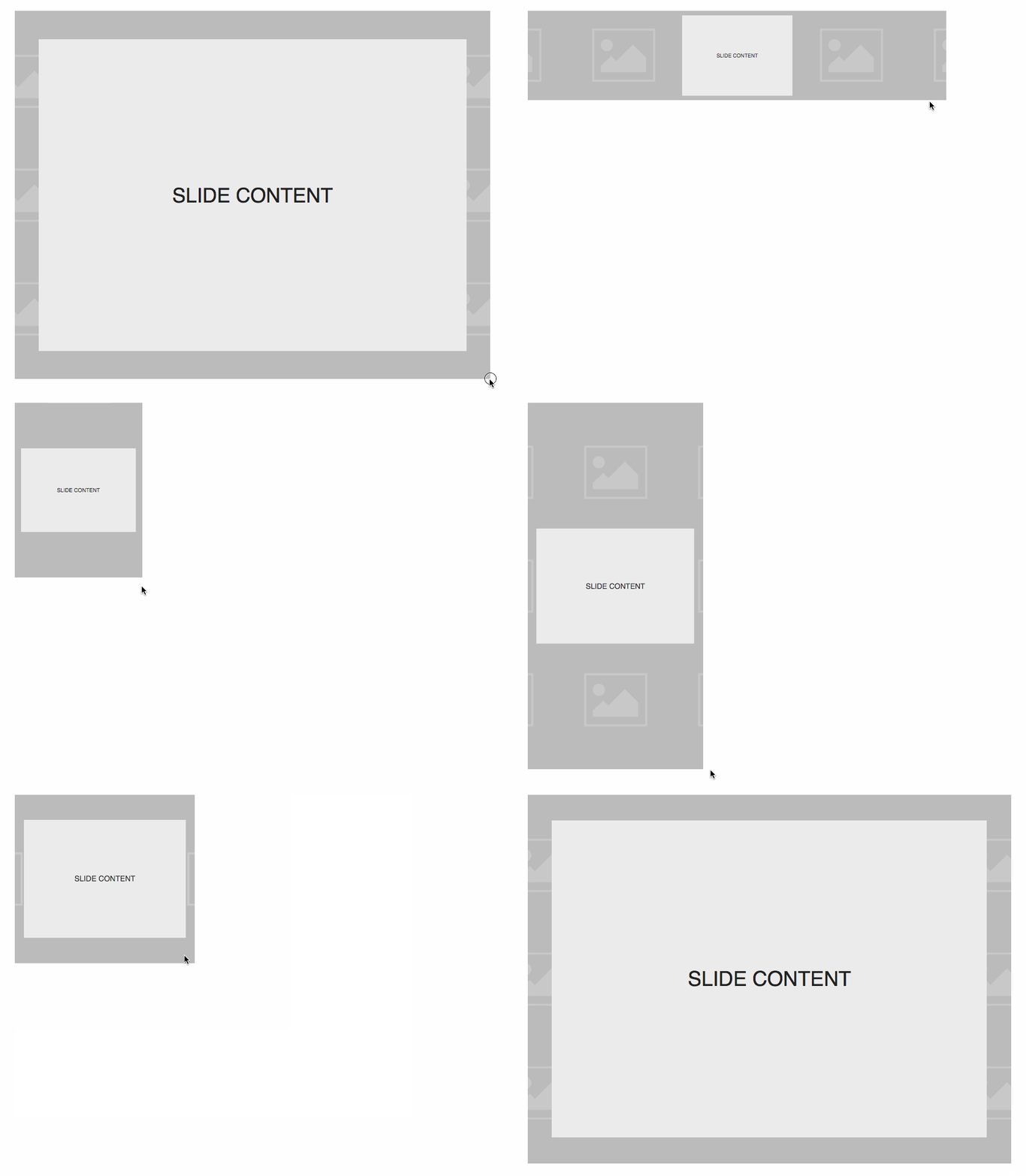
Here's a visualization showing how these two layers come together to make the best use of available space. The tiled images represent the background layer and the light "SLIDE CONTENT" box represents the content.