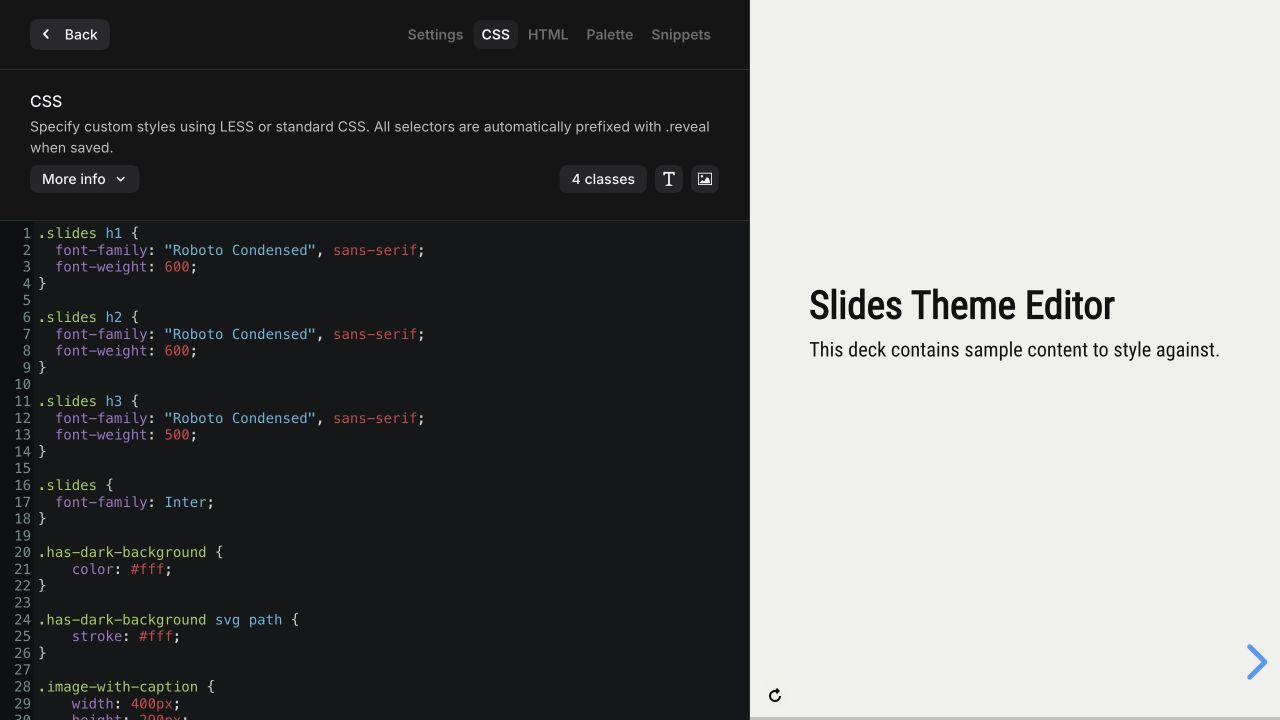
The theme editor lets team owners and admins create custom themes for everyone on the team. Saved themes are available in the Style panel of the Slides editor, and you can choose a default theme for new decks. When you edit an existing theme, decks that use it update automatically to reflect your changes.
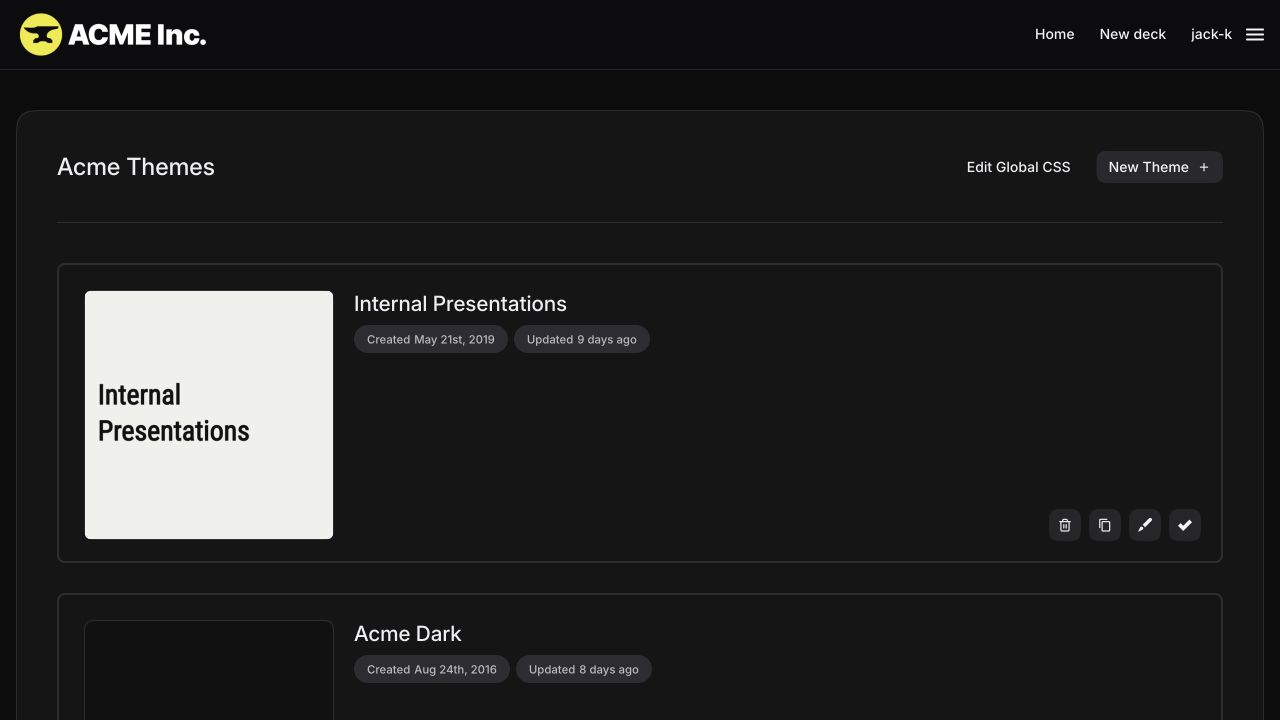
To open the theme editor, hover over your username in the site header and select Themes. The first screen lists your team's themes, where you can add new themes or remove existing ones:
Select a theme to edit it. The deck on the right previews your theme and updates in real time as you make changes. It includes several slides for previewing and styling different types of content.
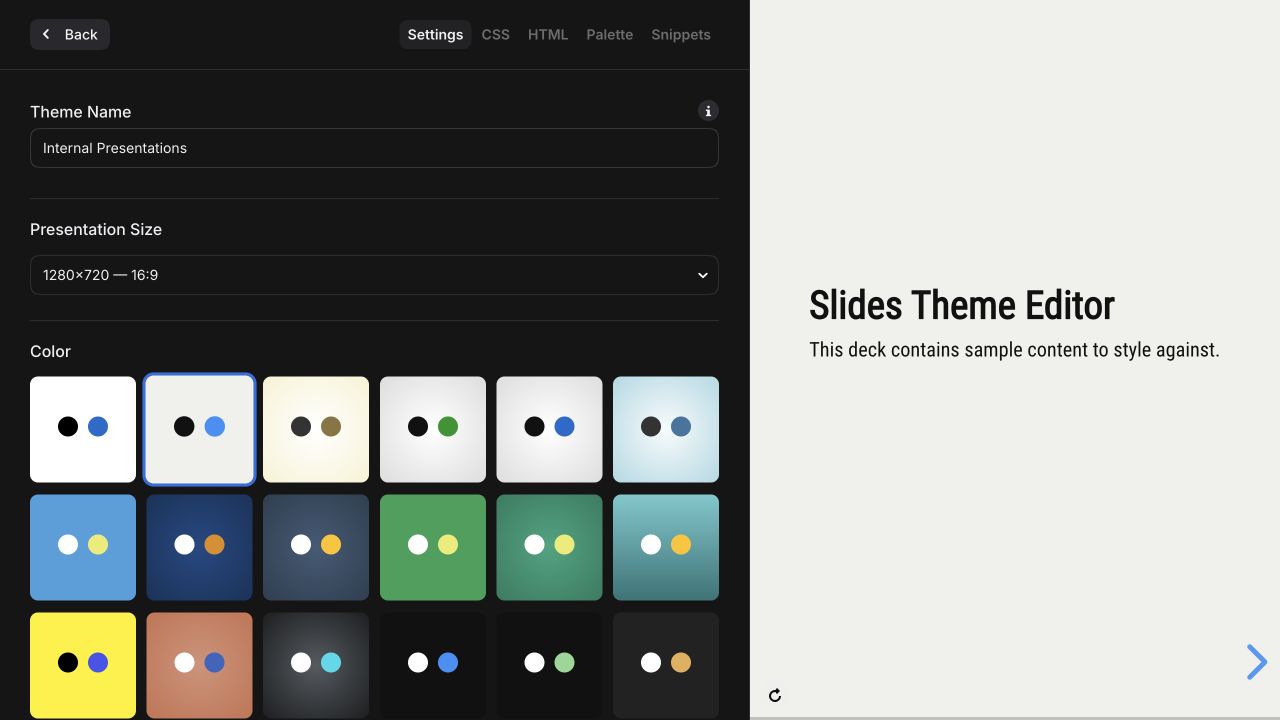
A save button appears when your theme has unsaved changes. Use the tabs across the top to switch between theme settings, CSS, HTML, the color palette, and reusable snippets.
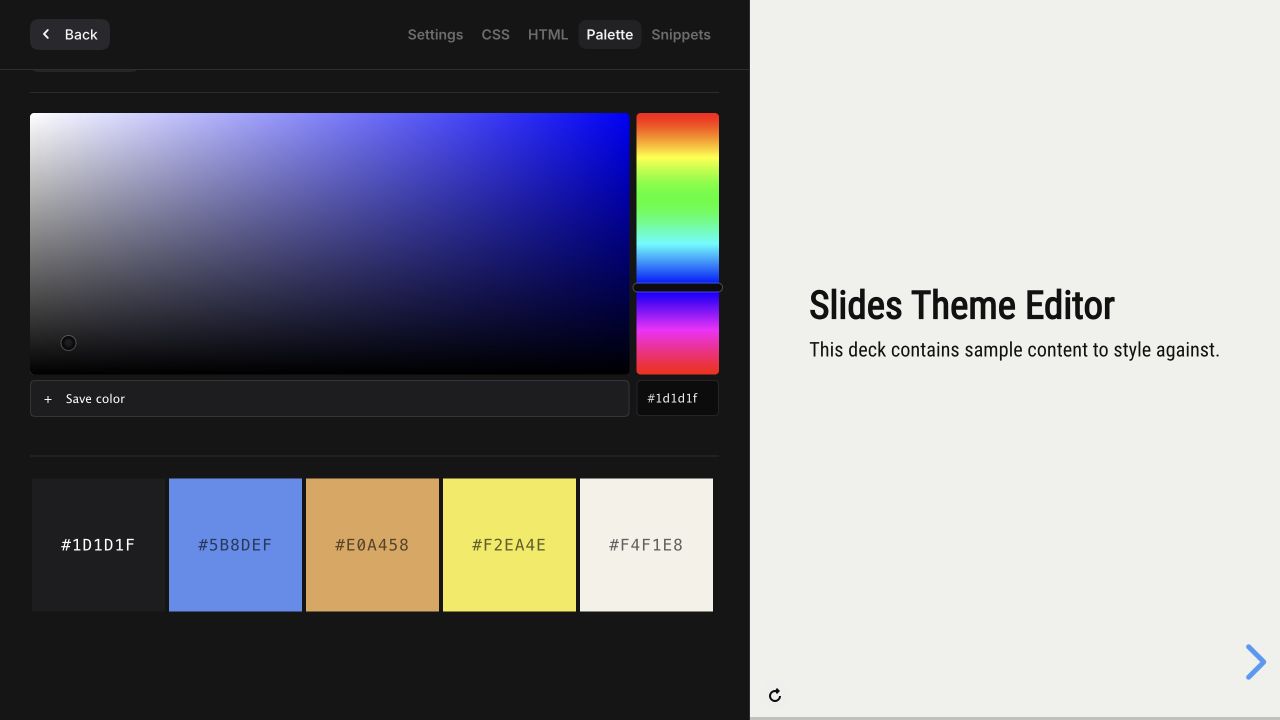
Color palette
Define a custom color palette for a theme to make your brand colors available everywhere you can choose a color in the Slides editor.
Learn more about color palettes.
CSS & HTML
The CSS editor supports plain CSS and LESS features such as nesting and variables. Styles are scoped within a .reveal {} selector when saved so they do not affect the surrounding page.
Use the HTML editor to add custom markup outside the individual slides. This is especially helpful for fixed elements, such as a company logo that always appears on top of the presentation.