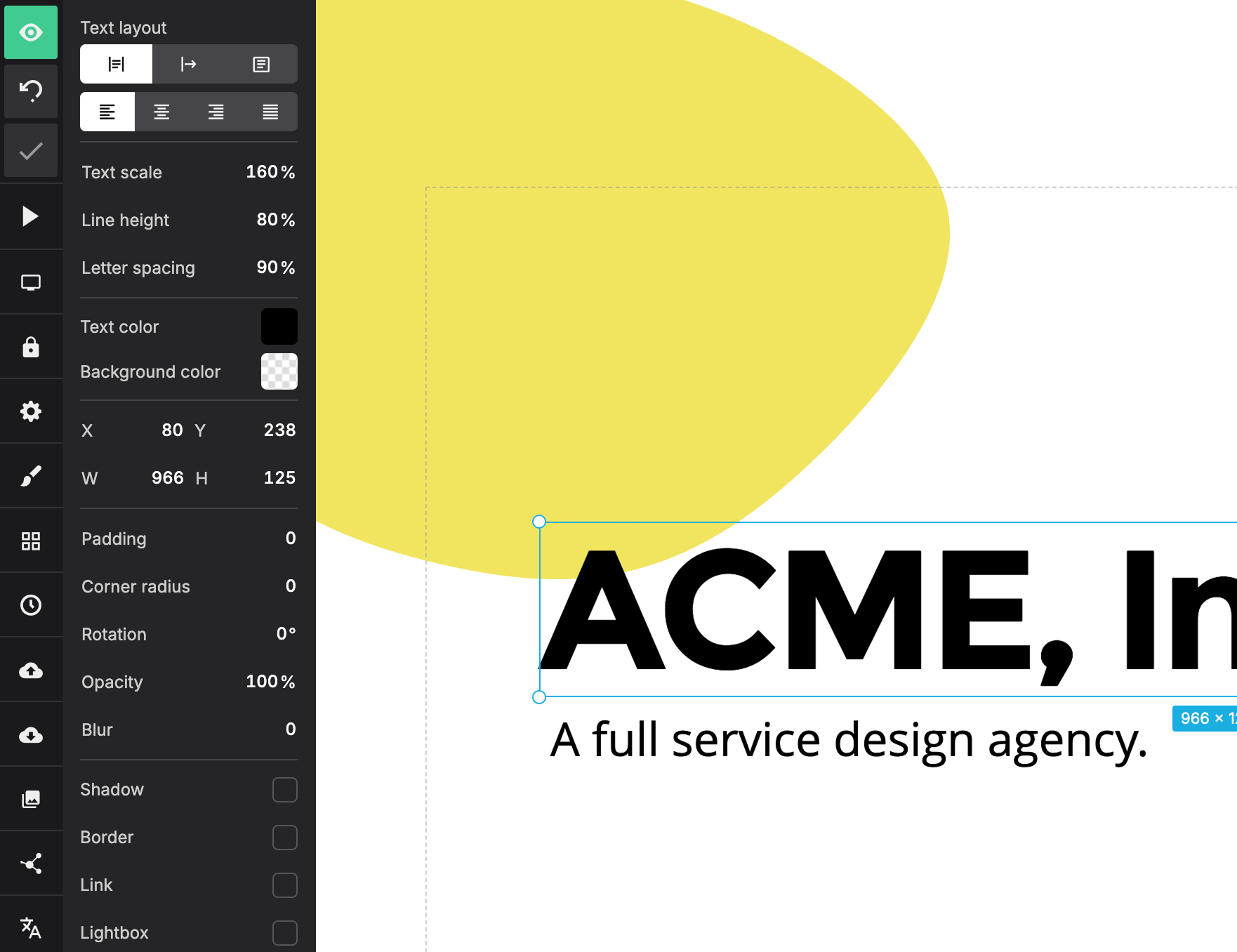
Everything you add to a slide is a content block. A block is a distinct piece of content that you can move and configure independently. Different kinds of blocks hold different types of content, such as text, images, shapes, and iframes.
See Moving, resizing, and aligning blocks for precise positioning and multi-selection. You can also group related blocks or lock finished content to prevent accidental edits.
Click a block once to select it. Double-click a text block to edit its text.
These keyboard shortcuts are available when one or more blocks are selected:
| Action | macOS | Windows |
|---|---|---|
| Move a block | ← ↑ ↓ → | ← ↑ ↓ → |
| Move farther | Hold ⇧ while pressing an arrow key | Hold ⇧ while pressing an arrow key |
| Copy | ⌘ C | Ctrl C |
| Cut | ⌘ X | Ctrl X |
| Paste | ⌘ V | Ctrl V |
| Group blocks | ⌘ G | Ctrl G |
| Delete | Delete | Backspace or Delete |
| Edit text content | Return | Enter |
| Stop editing text content | Esc | Esc |
Configuration
When you select a block, the panel on the left side of the editor shows the options for that block. For example, a text block's options include alignment, size, color, and more.