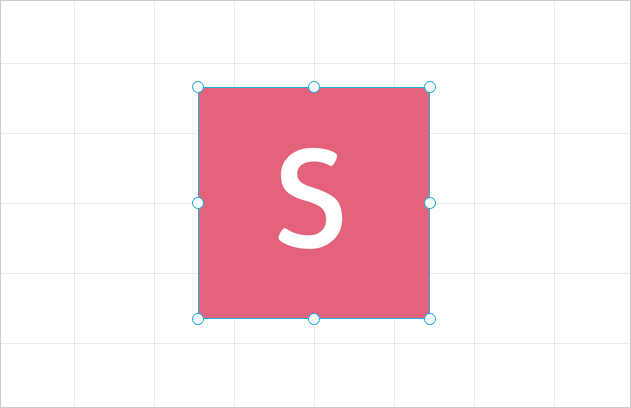
Move, resize, align, and select content blocks to build a precise slide layout. Select a block to reveal its resize handles and layout controls.
Move and resize blocks
Drag a selected block to move it. Drag one of its resize handles to change its dimensions.
- Hold ⇧ while resizing to preserve the block's proportions.
- Hold ⌥ on macOS or Alt on Windows while resizing to resize from the center.
Use these shortcuts for precise positioning:
| Action | Shortcut |
|---|---|
| Move by 1 pixel | ← ↑ ↓ → |
| Move by 10 pixels | Hold ⇧ and press an arrow key |
| Move to the corresponding slide edge | Hold ⌥ on macOS or Alt on Windows and press an arrow key |
| Move to the center of the slide | ⌥ C on macOS or Alt C on Windows |
Align blocks with guides
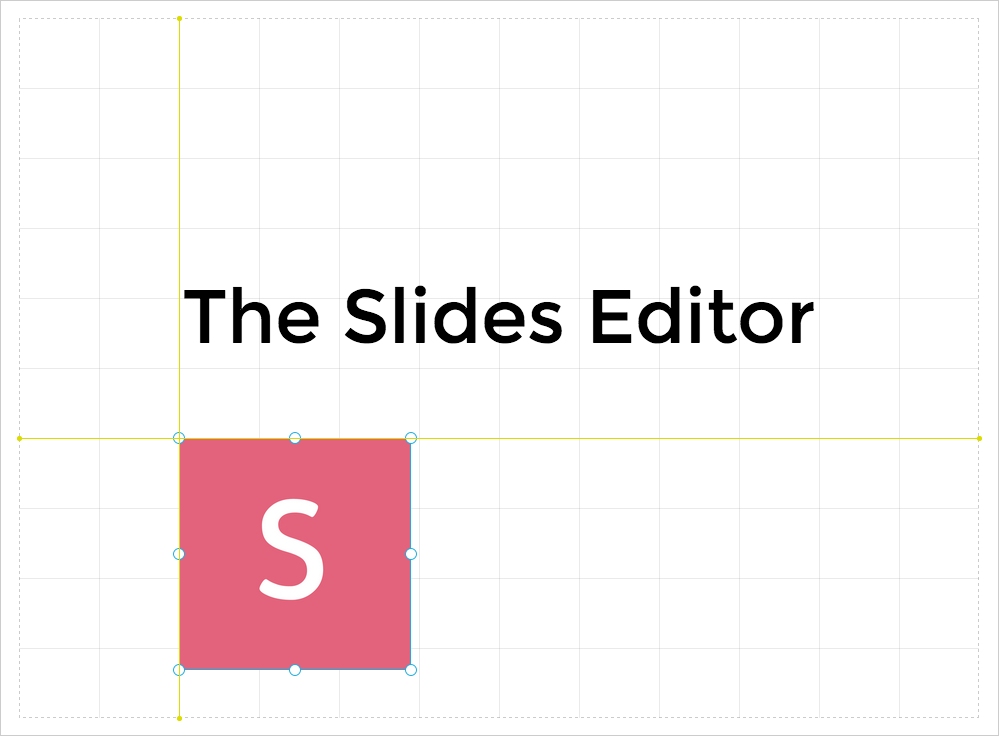
When you move or resize a block near another block or a grid line, it snaps into alignment. Yellow guides show the edge or line used for alignment.
You can adjust snapping and grid visibility in Grid & guide settings.
Select multiple blocks
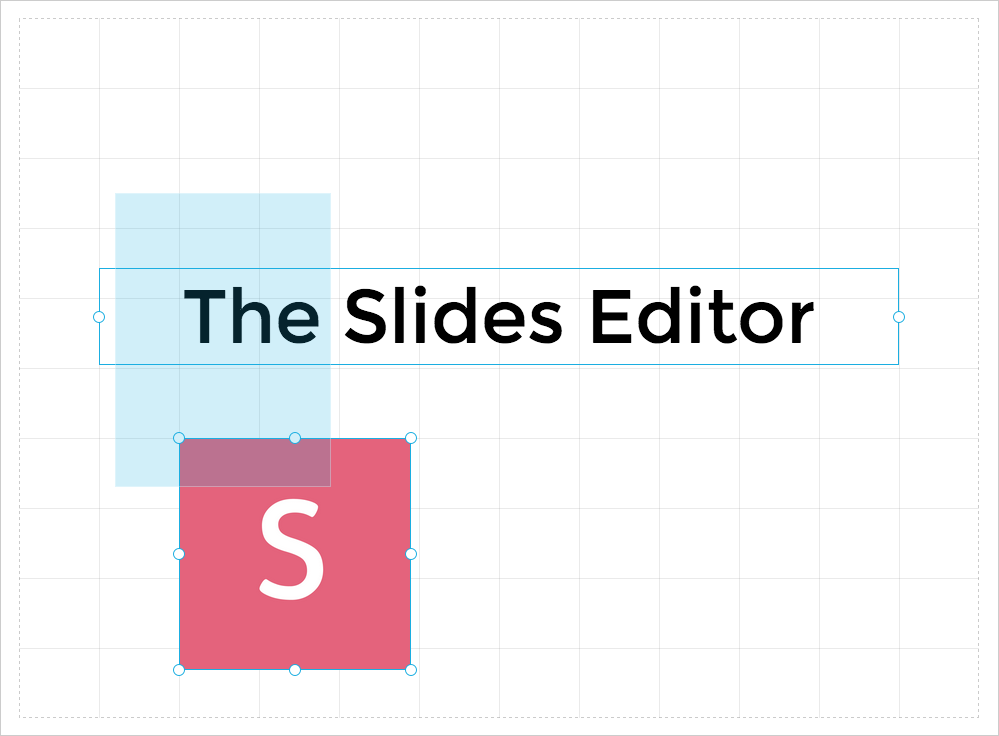
Select multiple blocks to move, resize, or configure them together. Drag across an empty area of the canvas to create a selection around the blocks you want.
- Press ⌘ A on macOS or Ctrl A on Windows to select every block on the current slide.
- Hold ⇧ while selecting a block to add it to or remove it from the current selection.
For copying, grouping, layering, and other editor commands, see Keyboard shortcuts.