Keyboard shortcuts can speed up common editing and presenting actions. The available shortcuts depend on whether you are working in the editor or viewing a presentation.
Editor shortcuts
Press ? in the editor to open the complete shortcut reference. You can also select the keyboard icon at the bottom of the editor's right sidebar. The dialog shows the shortcuts available for your account and operating system.
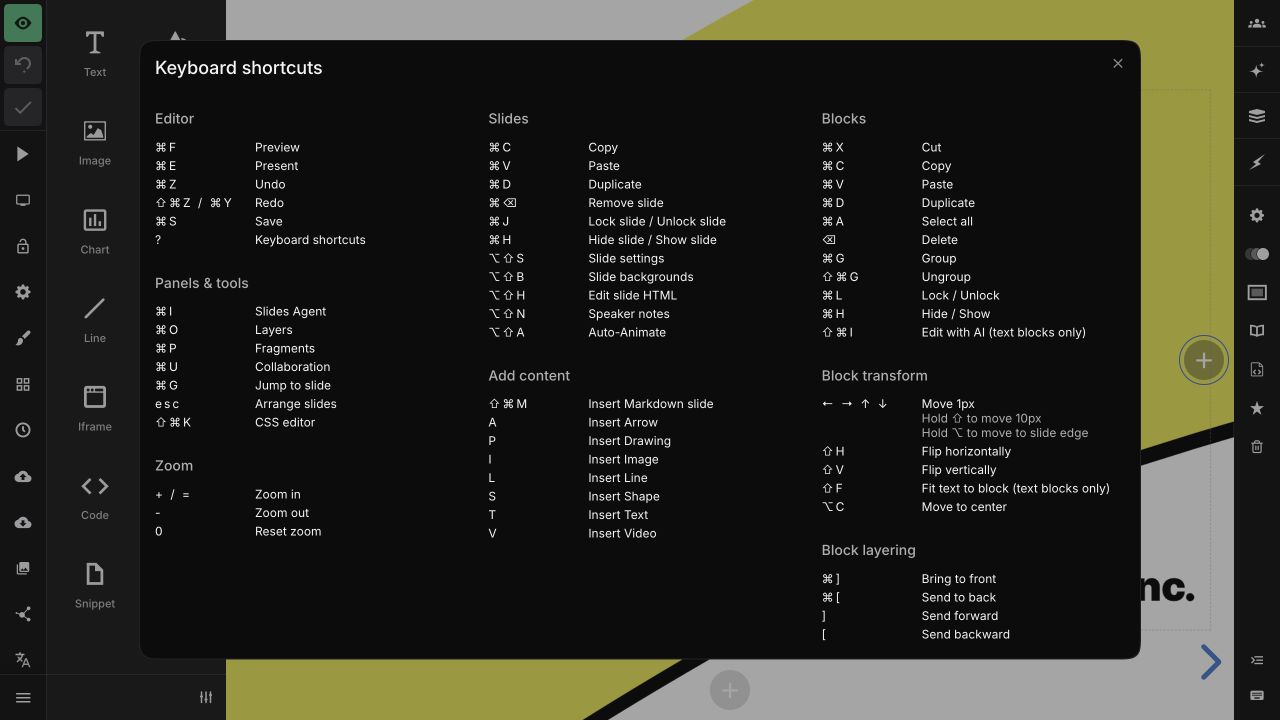
The dialog covers editor actions, panels and tools, slides, blocks, positioning, layering, zoom, and content insertion. Some useful starting points are:
-
?opens the keyboard shortcut dialog. -
Cmd+Zon macOS orCtrl+Zon Windows undoes the latest change. -
Cmd+DorCtrl+Dduplicates the selected slide or block. - Arrow keys move a selected block by one pixel. Hold
Shiftto move it by ten pixels. -
Escopens arrange mode. -
Cmd+Shift+MorCtrl+Shift+Minserts slides from Markdown.
Most editor shortcuts are disabled while you are typing in a text field or while another dialog is open.
Presentation navigation
The arrows in the bottom-right corner of a presentation show which directions are available. You can also navigate with these keys:
| Key | Action |
|---|---|
Esc |
Open overview mode for a bird's-eye view of the deck |
B or .
|
Pause the presentation and black out the screen |
S |
Open speaker view from a fullscreen presentation |
N or Page Down
|
Go to the next slide, including vertical slides |
P, Page Up, or Space
|
Go to the previous slide, including vertical slides |
Right Arrow |
Go to the next horizontal slide |
Left Arrow |
Go to the previous horizontal slide |
Down Arrow |
Go to the next vertical slide |
Up Arrow |
Go to the previous vertical slide |
Home |
Go to the first slide |
End |
Go to the last slide |
Touch gestures
| Gesture | Action |
|---|---|
| Swipe left | Go to the next slide |
| Swipe right | Go to the previous slide |
| Swipe up | Go to the next vertical slide |
| Swipe down | Go to the previous vertical slide |