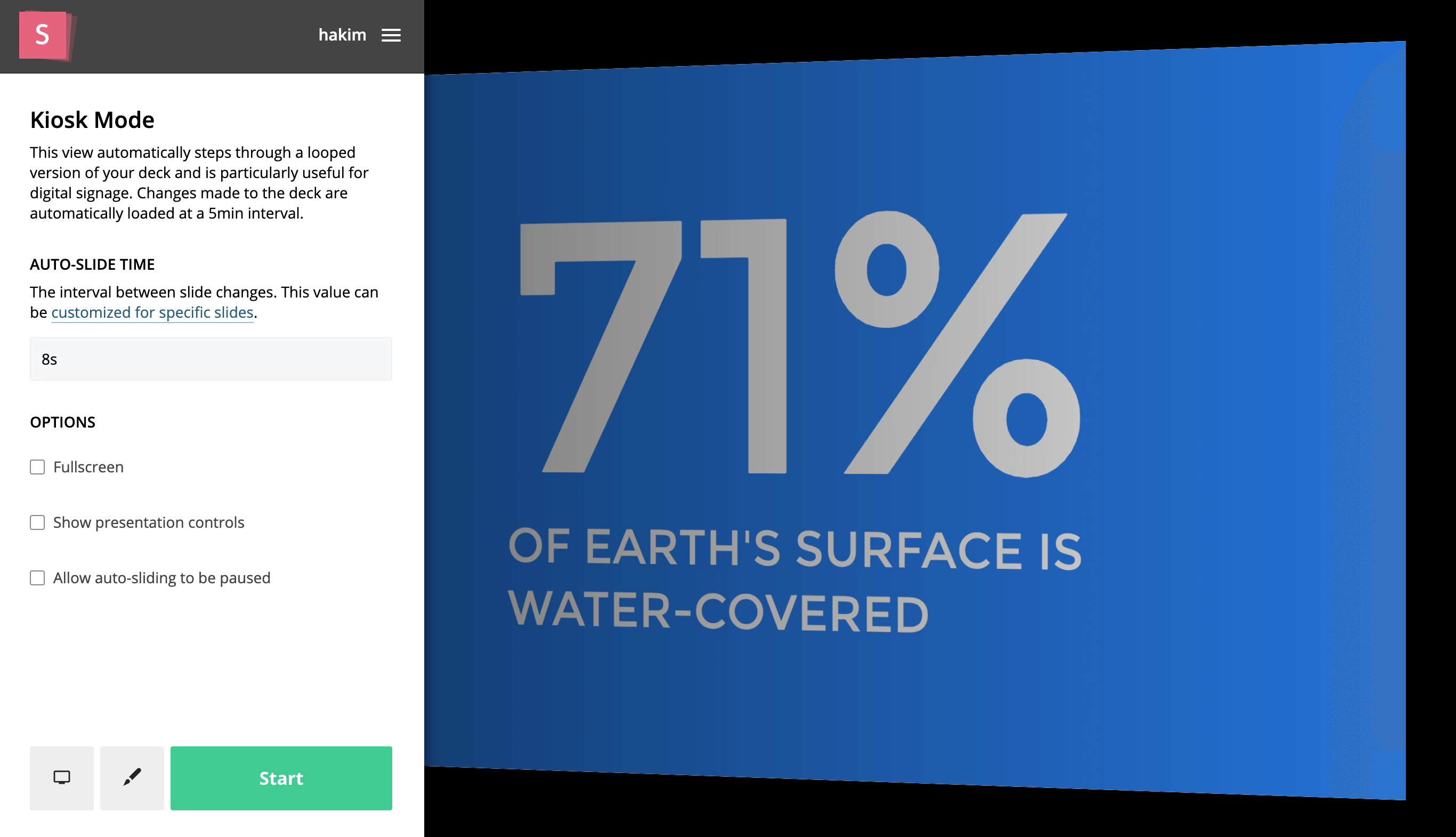
The Kiosk Mode automatically steps through all slides in your presentation at a fixed interval. This view is useful when you want to display an infinitely looping deck on digital signage or on a kiosk display. This view automatically detects and loads any changes that you make to your deck so there's never any need to reload. We check for changes every few minutes.
Slide-specific timing
You can override the auto-slide timing on a per-slide basis via the Slide Settings menu inside of the Slides editor.
Pause and resume
If you enable Allow auto-sliding to be paused, a play/pause control appears in the bottom-left corner. It shows when the next slide will appear and lets you pause, navigate manually, and resume auto-slide playback.

To return to the Kiosk Mode menu after having already started a presentation, move your mouse towards the left edge of the screen and press the button that appears. See below: