Embed your presentations on other pages, such as a personal website, blog post, or news article, so readers can flip through your slides without leaving the page.
Embed a presentation
-
Open the Share popup from a profile, editor, or presentation page.
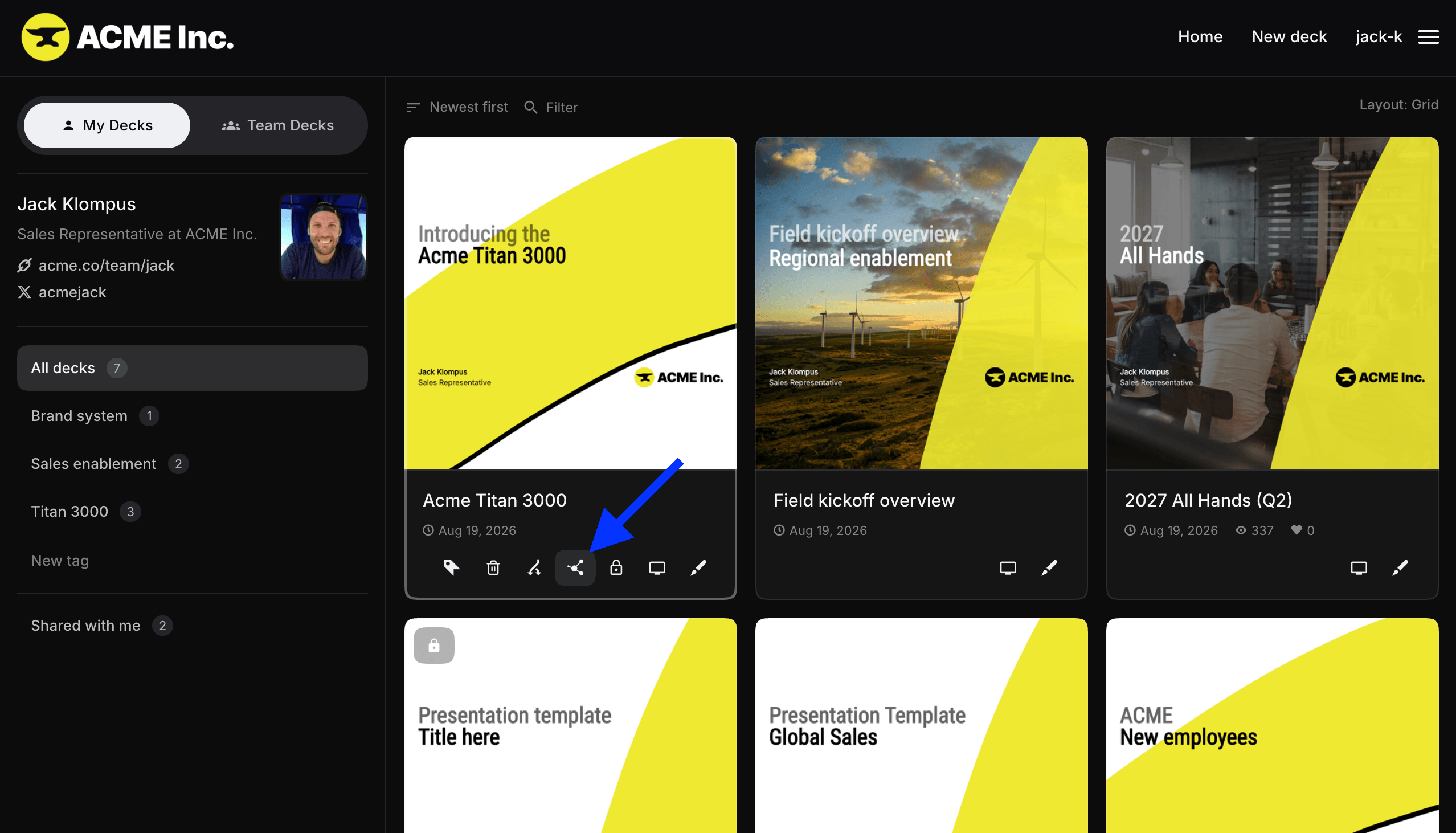
-
Configure the embed. Some options require a paid plan.
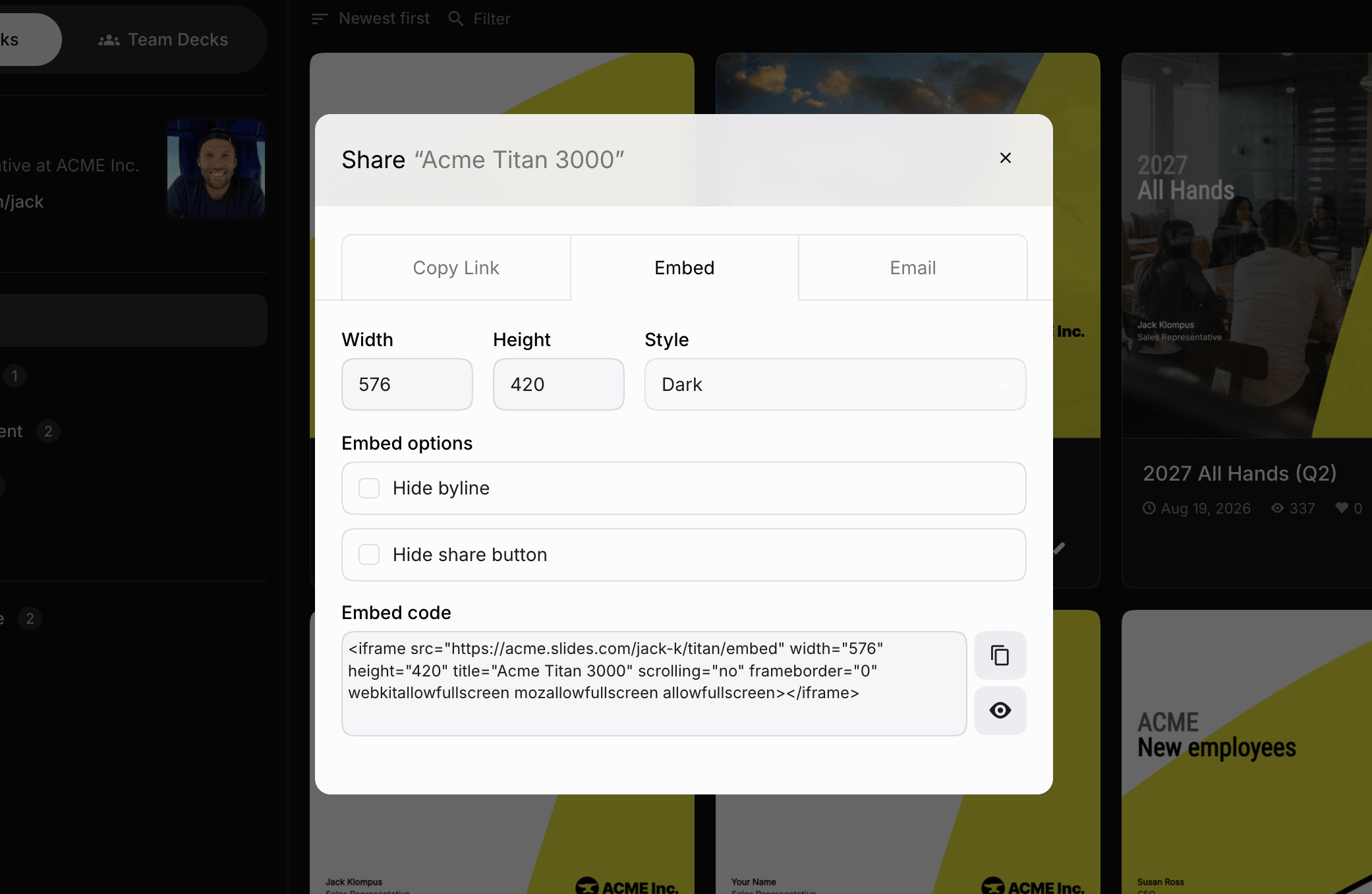
Copy the generated code below the options and paste it into the HTML source of your site.
Start on a specific slide
Embedded presentations start on the first slide by default. To start on a different slide:
- Open the presentation.
- Navigate to the slide you want the embed to start on.
- Select Share.
- Turn on Start embed on current slide in the embed options.
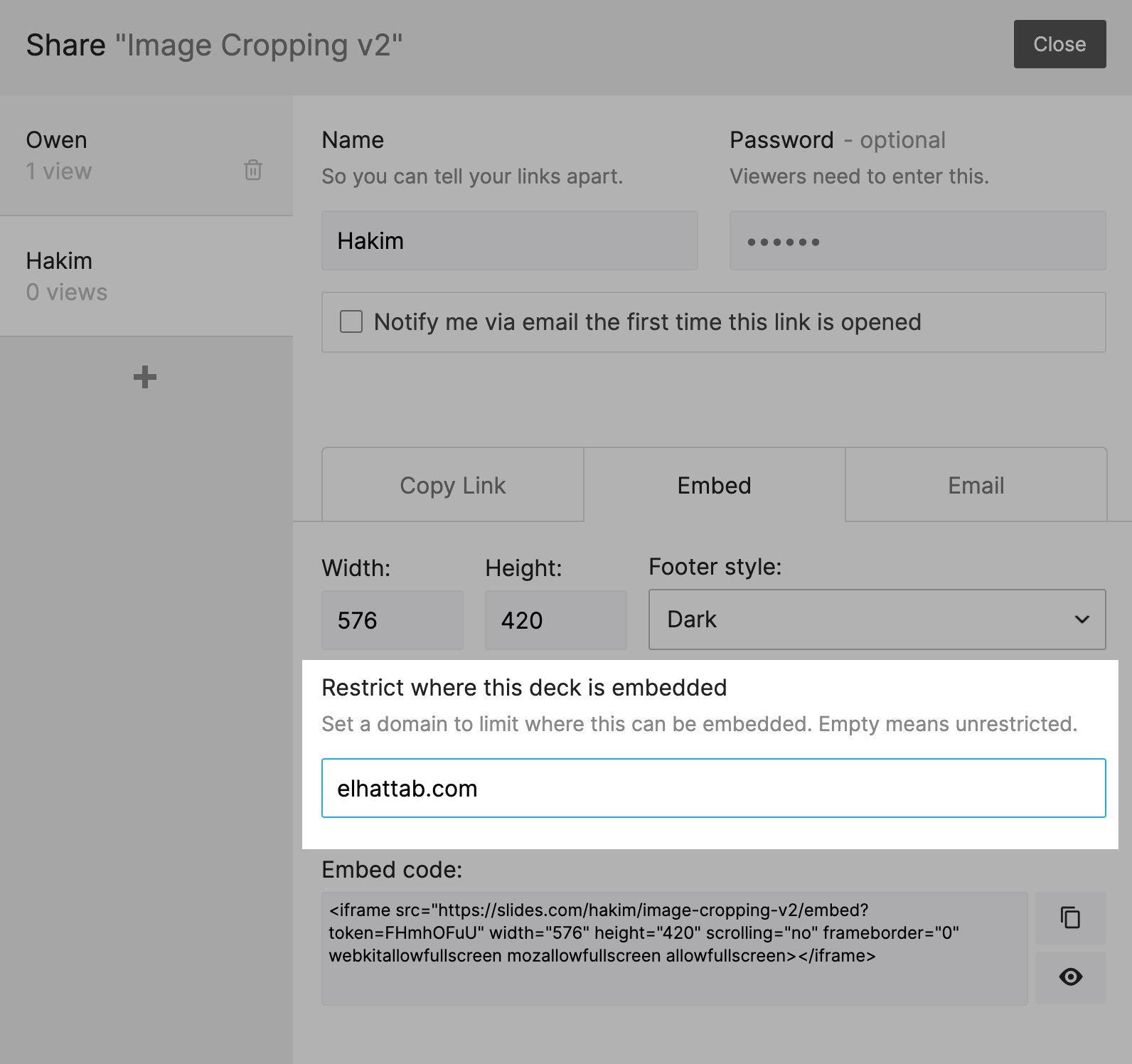
Restrict where your deck can be embedded
When embedding a private presentation, Pro and Team users can restrict which websites are allowed to embed it. This prevents someone from copying the embed code and using it elsewhere. This option is only available for private presentations. Learn more in Sharing private decks.
Control the embed with JavaScript
The embed API lets the page that hosts your embed track the current slide and navigate the presentation programmatically.