Kiosk Mode automatically steps through every slide in your presentation at a fixed interval and loops back to the start. It's ideal for digital signage, trade show booths, lobby displays, and other screens that run without a presenter.
While a deck is running in Kiosk Mode, it checks for changes every few minutes and loads your latest edits automatically, so you never need to reload the display.
Start Kiosk Mode
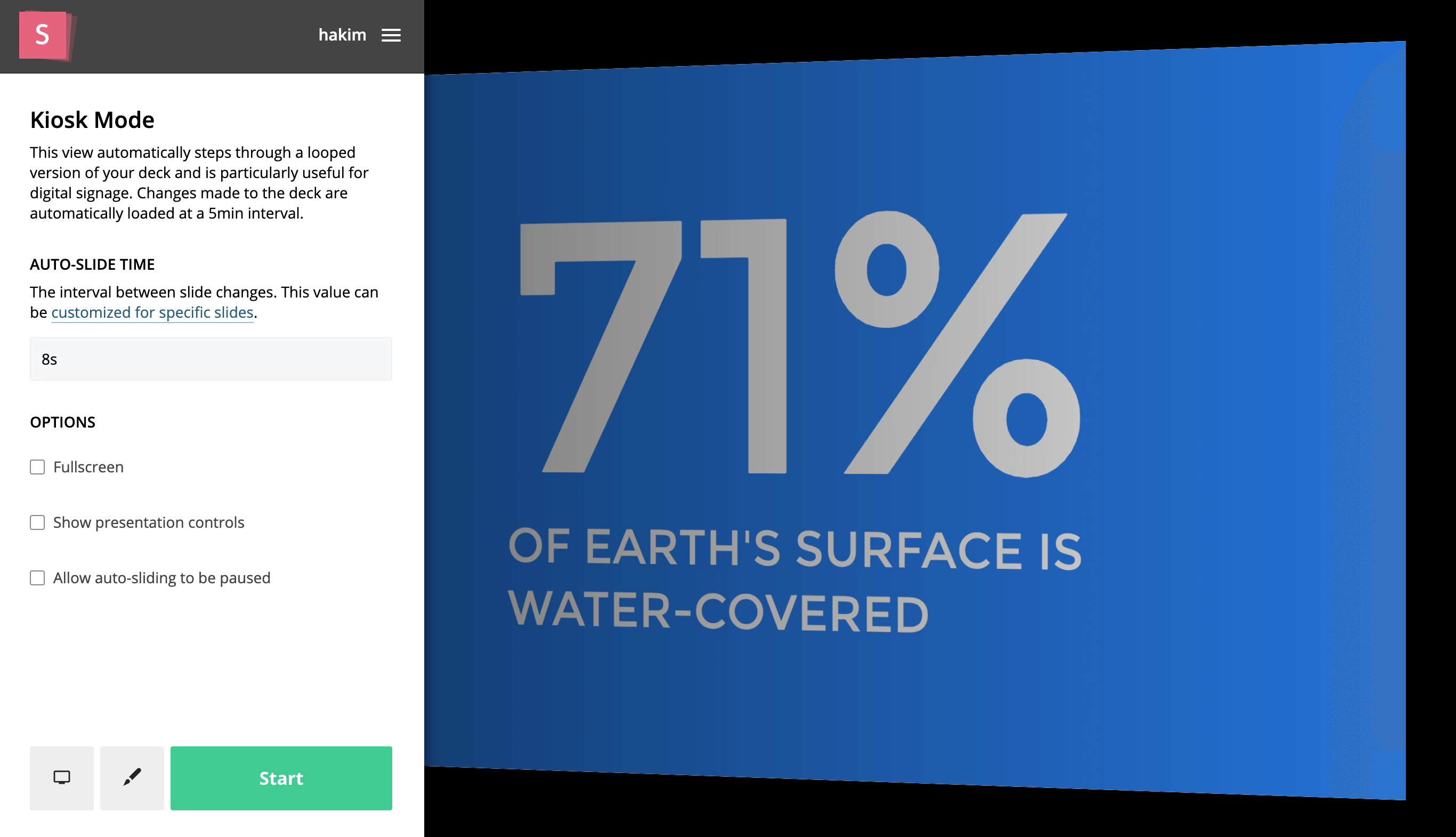
Select Open deck... from the editor or presentation page, then choose Autoplay. You can also add /kiosk to the end of a deck URL, for example slides.com/<username>/<deck-name>/kiosk.
Before starting, set the Auto-Slide Time, which is the number of seconds between slide changes. You can also choose whether to go Fullscreen, Show presentation controls, and Allow auto-sliding to be paused.
Slide-specific timing
To keep a particular slide on screen for longer or shorter than the rest, set its duration in slide settings.
Pause and resume
If you enable Allow auto-sliding to be paused, a play/pause control appears in the bottom-left corner. It shows when the next slide will appear and lets viewers pause, navigate manually, and resume auto-slide playback.

Return to the Kiosk Mode settings
To change the settings after the presentation has started, move your mouse toward the left edge of the screen and select the button that appears.