Slides can translate your presentation into multiple languages using AI, producing a separate, fully editable copy for each language. Translated copies start as faithful translations and can be refined by hand — making them a strong starting point for multilingual versions of your content.
How to translate a presentation
1. Open the Translation Manager
To get started, open your deck in the editor and select Translate deck in the sidebar. This opens the Translation Manager, which shows any translations you've already created and lets you run new ones.
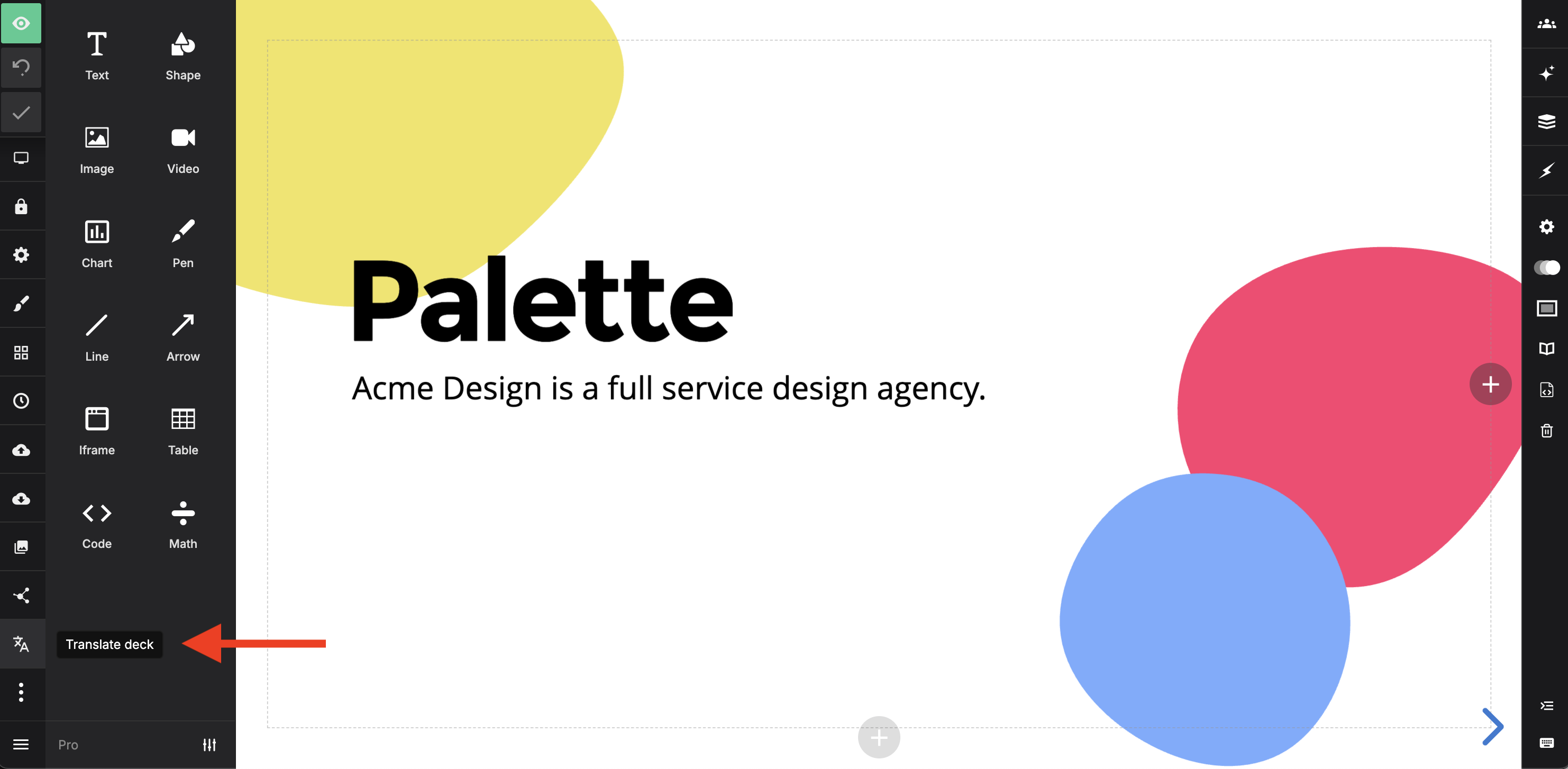
2. Select languages
Click Add languages to choose which languages to translate your deck into. Each language produces one translated copy.
If you've translated this deck before, those languages are already listed and checked. Uncheck any you don't want to run again.
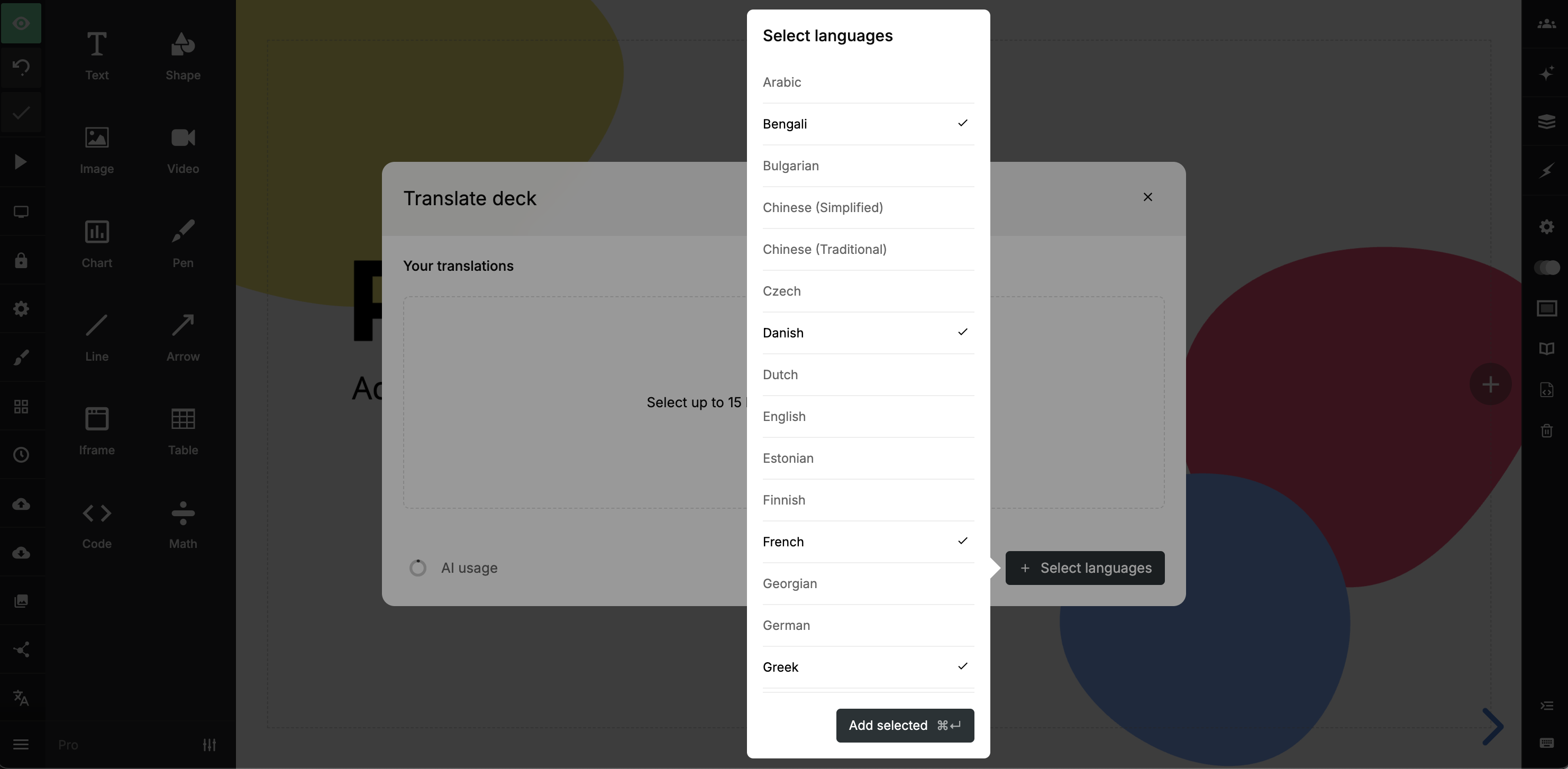
3. Start the translation
Once you've selected your languages, click Start translation.
If a selected language already has a translated copy, running the translation overwrites it.
4. Review and edit before saving
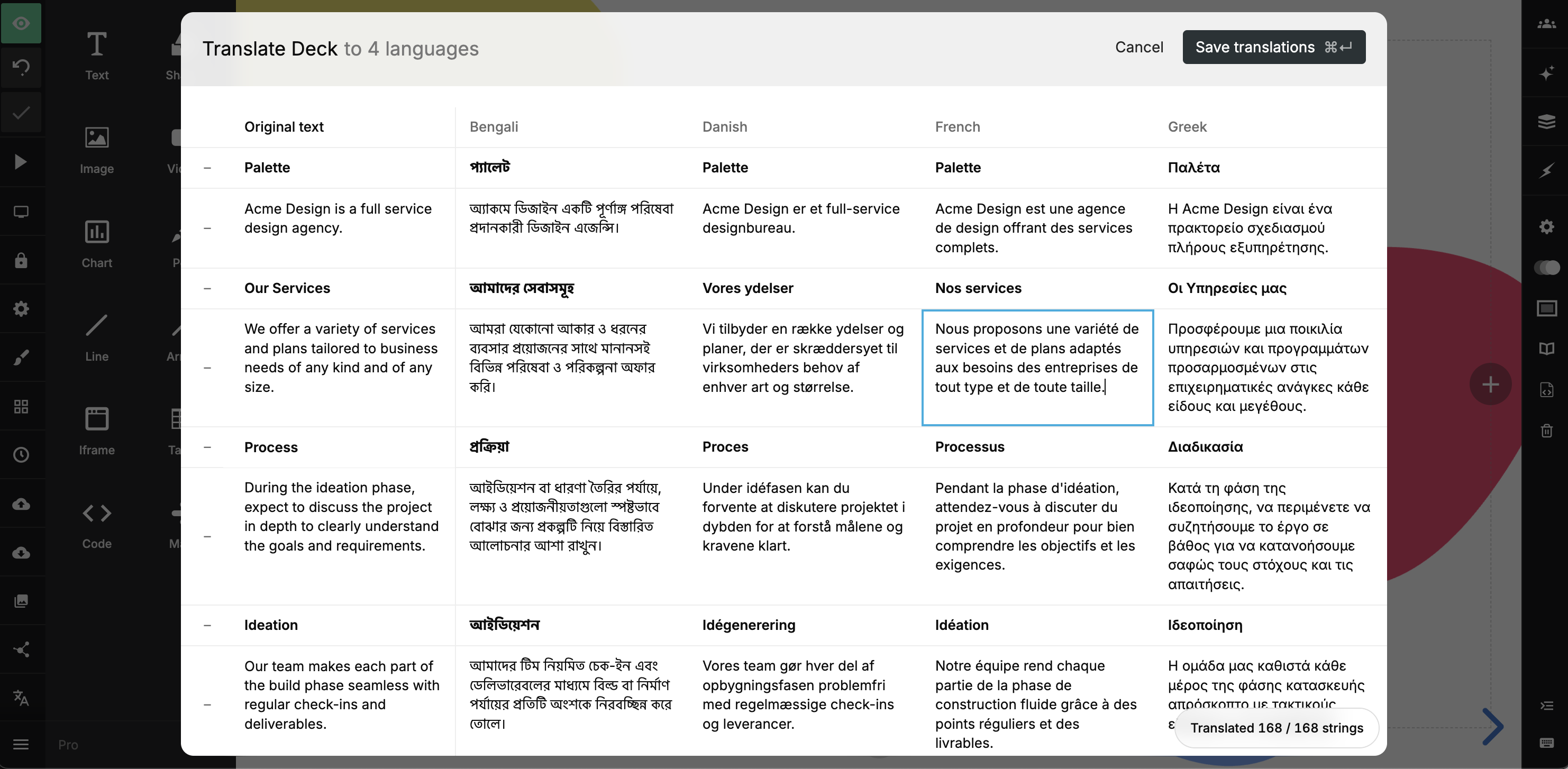
When translation finishes, a preview table shows the translated content for each language side by side. You can click into any cell to make corrections before anything is saved.
Once you're happy with the results, click Save translations. This creates new translated copies for any new languages, and updates existing copies for languages you re-ran.
Managing translations
Open translated decks
Open any translated copy from the Translation Manager by selecting View translation next to its language.
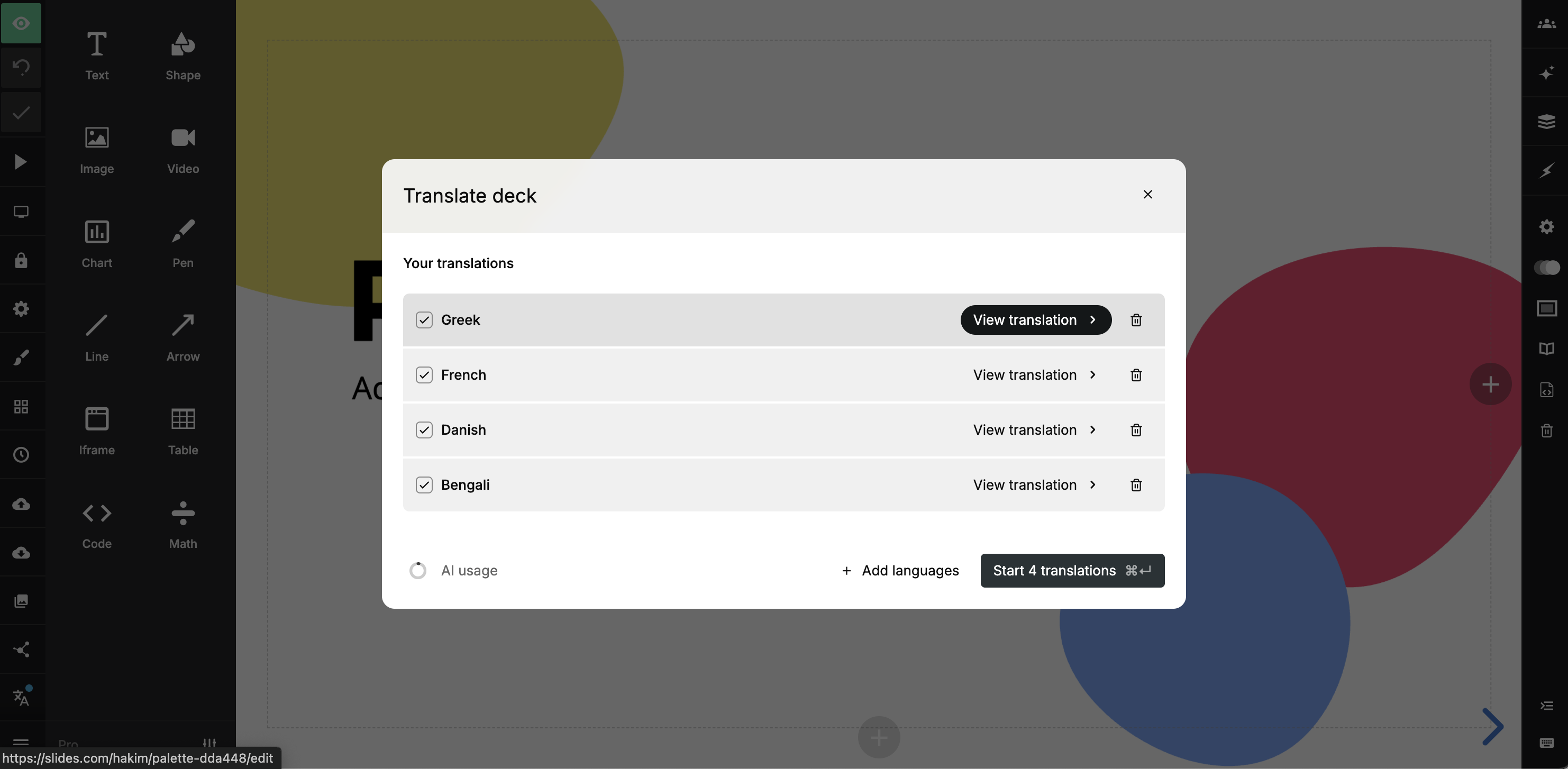
When editing a translated deck, a bar at the bottom of the editor identifies the language and provides a link back to the source deck.
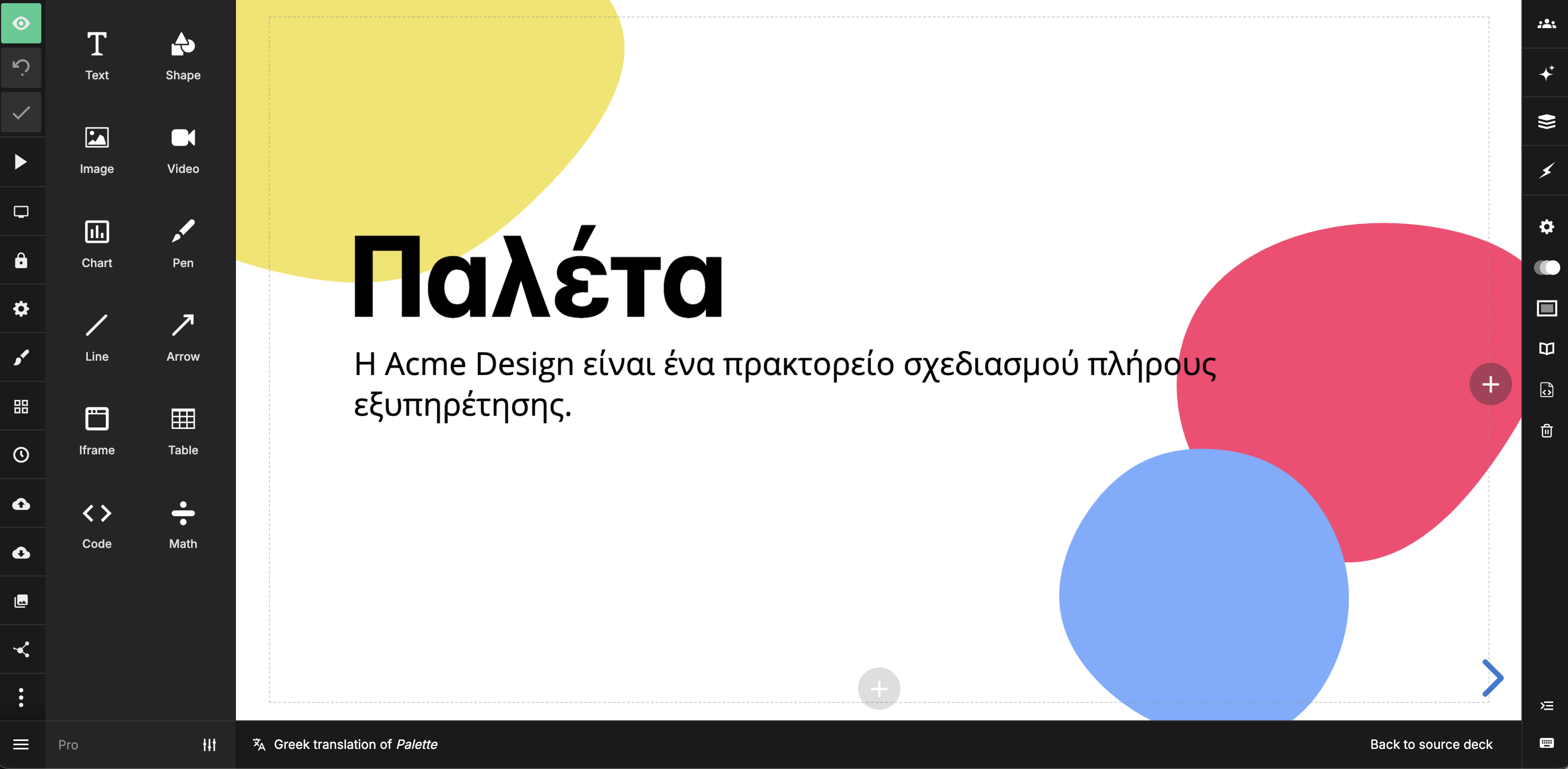
Translated copies are independent from the source — changes you make to the source deck don't automatically carry over to translations.
Keep translations up to date
If you edit the source deck and want to update your translations, open the Translation Manager and run the translation again. Existing translations are pre-selected, so you can re-run all of them in one go or uncheck any you'd like to leave as-is.
Re-running a translation overwrites the existing translated copy, including any manual edits you've made to it.
Delete a translation
To remove a translated copy, click the trash icon next to it in the Translation Manager. This only removes that language's copy — the source deck and other translations are unaffected.
If you delete the source deck itself, all of its translated copies are deleted along with it.
Team features
The following settings are available to team admins only.
Glossary
The Glossary lets admins define a set of term mappings — source term to target term, per language pair — that must be followed during translation. These mappings apply automatically whenever a team member translates between that language pair.
The glossary is managed from the Glossary tab and is shared across all decks in your team. You can add entries manually or import them in bulk via CSV. Entries can also be exported to CSV for review or editing outside of Slides.
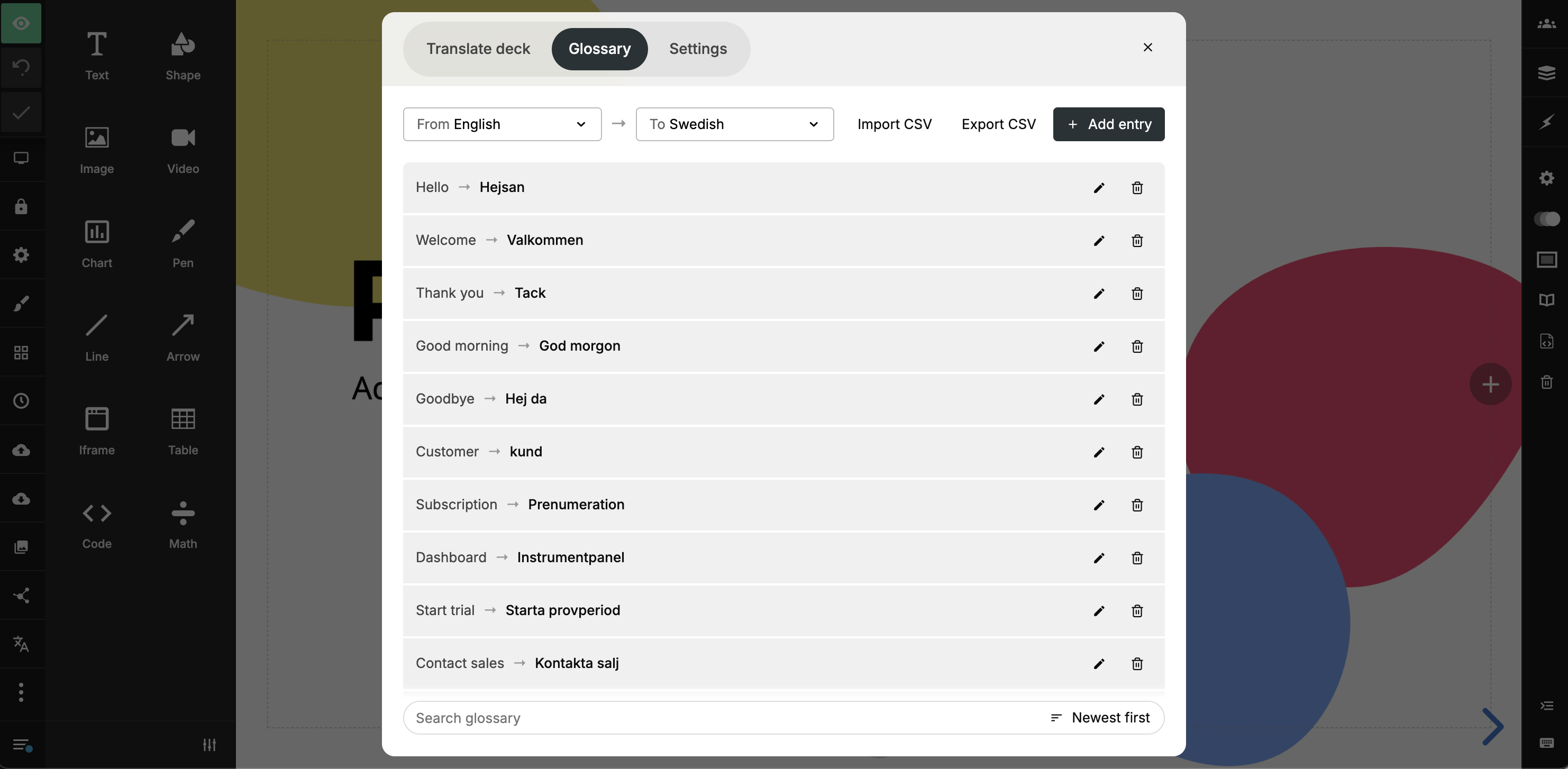
CSV rows follow the format source_term,target_term,source_language,target_language with no header row:
Hello,Hej,en,sv
World,Värld,en,sv
Default languages
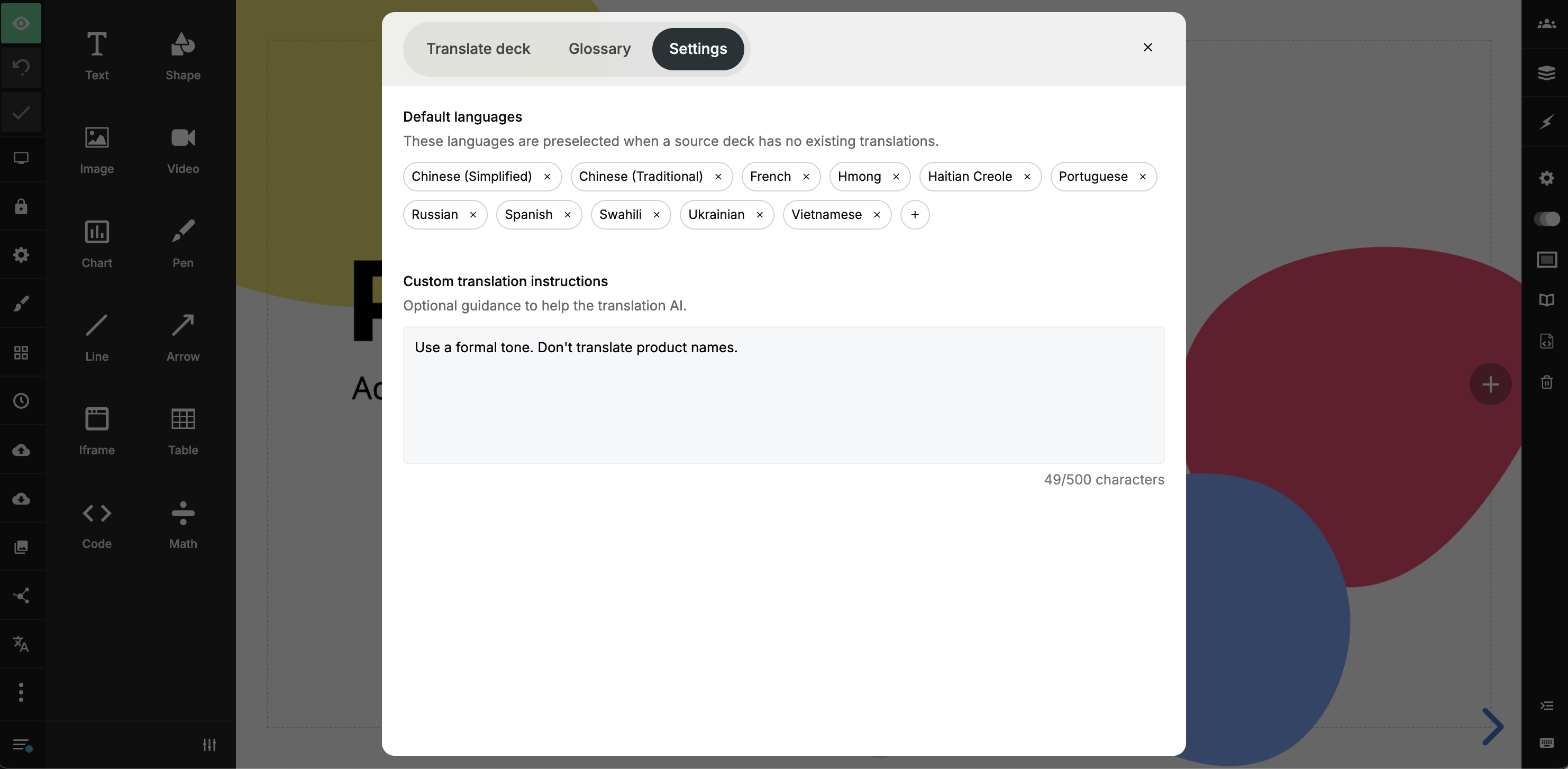
Admins can configure a set of default languages in the Settings tab. These languages are pre-selected for all team members when they open the Translation Manager on a deck that hasn't been translated yet. Members can still adjust the selection before starting a translation.
Custom translation instructions
In the Settings tab, admins can provide free-text instructions that are used during translation. Use them to guide tone of voice, brand terminology, or formatting preferences.
For example: "Keep product names in English and use a formal tone."
FAQ
Can I translate a translation?
No. The Translation Manager is only available on source decks.
If I edit the source deck, do my translations update automatically?
No. Translations are independent copies. To pick up changes from the source, you'll need to re-run the translation.
Will re-running a translation overwrite my manual edits?
Yes. Re-running replaces the full content of the translated copy.
What happens to translations if I delete the source deck?
All translated copies are deleted along with it.
Can I edit a translated deck after it's created?
Yes. Translations can be opened for editing from the Translation Manager in the source deck.
Can teammates see and use translated decks?
Yes. Translated decks are accessible to team members. Collaborators who have been invited to the source deck can also access its translated copies.
Does the glossary apply to all decks, or just one?
The glossary is team-wide and applies to all decks in your team.