Connect Slides to the AI assistant you already use, and it can find, summarize, create, edit, and share your presentations for you. In Claude, add Slides.com from the plugin directory in a few clicks. In other AI tools, add the Slides server URL and sign in to Slides:
https://mcp.slides.com/Claude
Slides.com is listed in Claude's plugin directory, so there's no server URL to copy. These steps work in Claude on the web and in the Claude desktop app.
- Open Settings › Plugins.
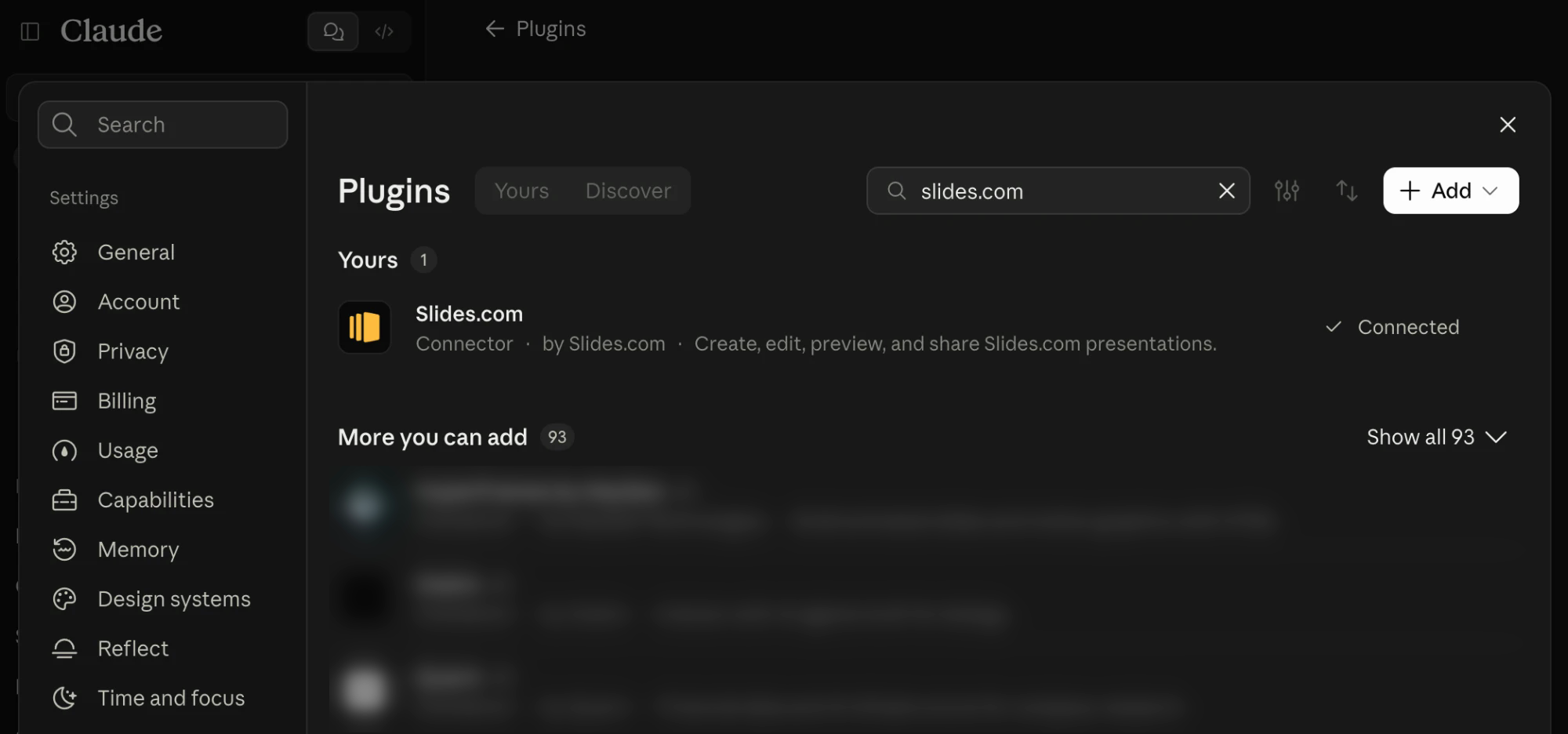
- Search for
Slides.comand click Connect. - Sign in to Slides and click Allow access.
Slides.com appears in the search results like this:
When you connect, Slides asks you to choose an access level. Choose Full access to let Claude create and edit presentations, then click Allow access:

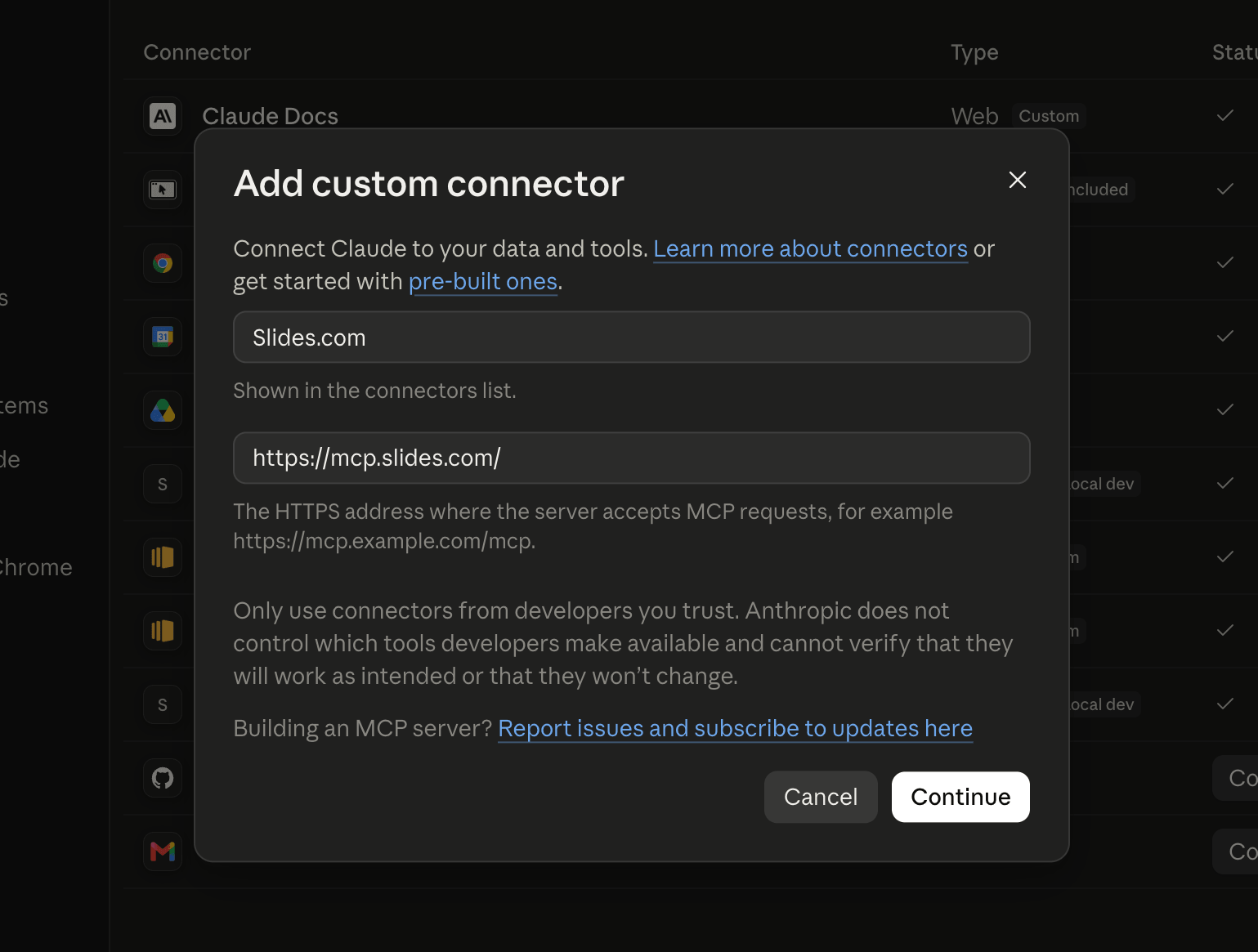
On Claude Team and Enterprise plans, an organization owner may need to enable Slides.com before members can connect it. You can also add Slides as a custom connector: open Settings › Connectors, click +, choose Add custom connector, and paste the server URL above:
ChatGPT
- Open Settings › Security and login and turn on Developer mode.
- Open ChatGPT Plugins and click +.
- Name it
Slides.com. Under Connection, choose the public endpoint option and pastehttps://mcp.slides.com/. - Create the connection, sign in to Slides, and click Allow access.
To use Slides, add Slides.com from the tools menu in a new chat.
Claude Code (terminal)
Add Slides from your terminal:
claude mcp add --transport http slides https://mcp.slides.com/
Then run /mcp in Claude Code, select slides, and choose Authenticate to sign in to Slides.
Codex CLI
Add Slides from your terminal. The second command opens your browser so you can sign in to Slides:
codex mcp add slides --url https://mcp.slides.com/
codex mcp login slides
Cursor
Add Slides to your mcp.json file:
{
  "mcpServers": {
    "Slides.com": {
      "url": "https://mcp.slides.com/"
    }
  }
}
Cursor opens your browser so you can sign in to Slides and click Allow access.
Other AI tools
Most AI tools that support MCP servers work the same way. Open the tool's connector or MCP settings, add https://mcp.slides.com/ as a new server, and sign in to Slides when prompted. See the MCP Server documentation for technical details.
Access levels
When you sign in, choose how much the tool can do:
- Full access lets it create, edit, share, and export presentations. Choose this if you want it to build or update decks for you.
- Read-only lets it view your presentations without making changes.
Try it out
Once connected, try a prompt like:
- “List my most recent presentations on Slides.”
- “Summarize my Q3 planning deck.”
- “Create a five-slide presentation about our product roadmap.”
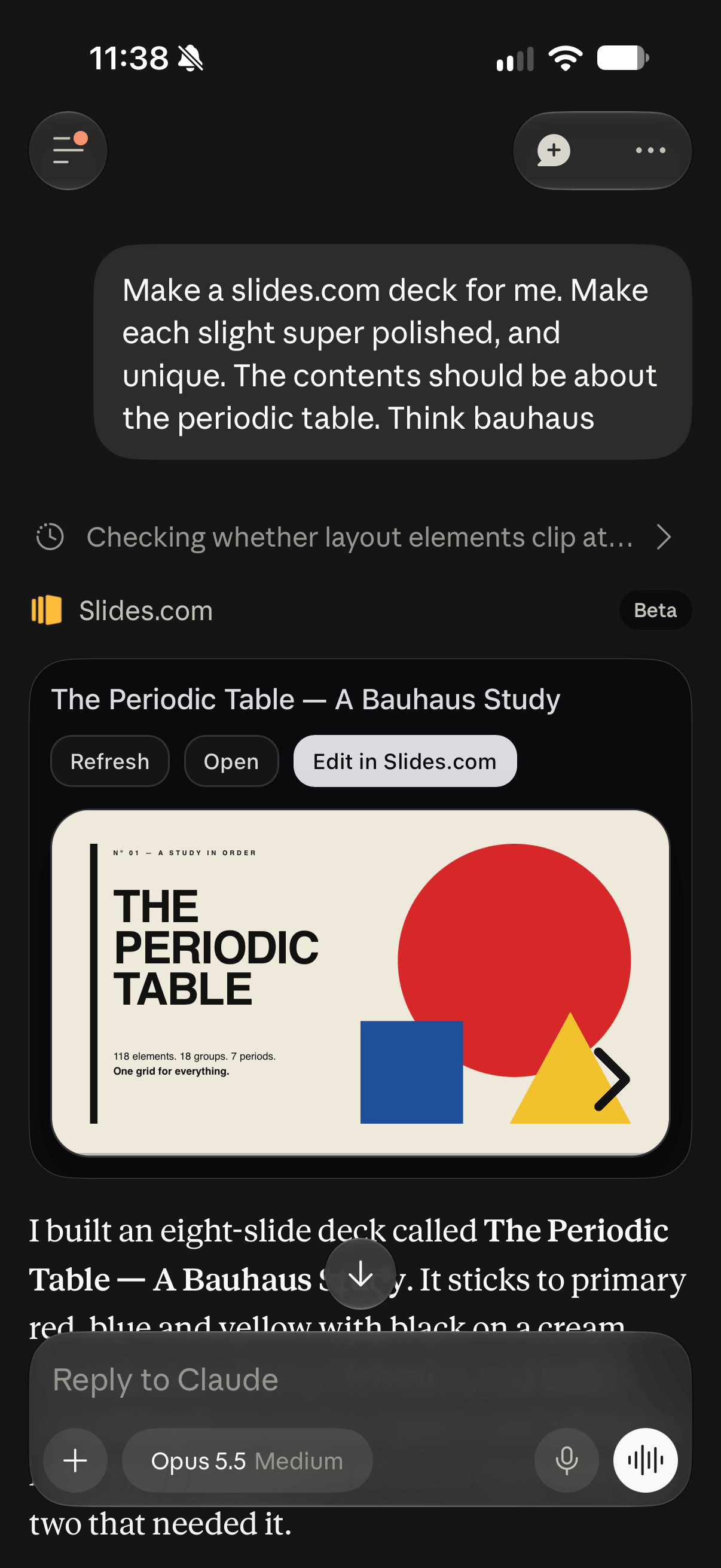
For example, this conversation in Claude shows a request for a presentation about the periodic table and a full interactive preview of the resulting deck. You can browse the slides right in the conversation, then click Edit in Slides.com to open the deck in Slides and make changes:
Browse and preview your decks
In AI tools that support interactive apps, ask “Open my Slides.com deck library” to browse your presentations, or ask to preview a specific deck directly in the conversation.
Open previews stay in sync with your changes while live updates are connected, so you can work with your assistant and see the results as you go.
Disconnect
Open Connected apps in your Slides settings and click Disconnect next to the tool. It loses access right away.
If the tool can view presentations but can't change them, it was connected with Read-only access. Disconnect it, then connect again and choose Full access.