Auto-animate creates smooth transitions between matching content blocks on consecutive slides. Move, resize, or restyle content from one slide to the next, and Slides animates the change for you. It works similarly to Magic Move in Keynote.
Use fragments when you want to reveal content step by step on one slide, or slide transitions when you only want to control how complete slides enter and leave the screen.
Create an auto-animation
The basic workflow is:
- Enable Auto-animate from the slide menu on the right.
- Duplicate the original slide.
- Move elements and make changes on the duplicated slide.
- Preview the deck to see the transition from the original slide to the duplicate.
How are elements matched?
Slides matches elements using several signals. Text, table, and code blocks are matched by their text content. Images, videos, and iframes are matched by their source file or URL.
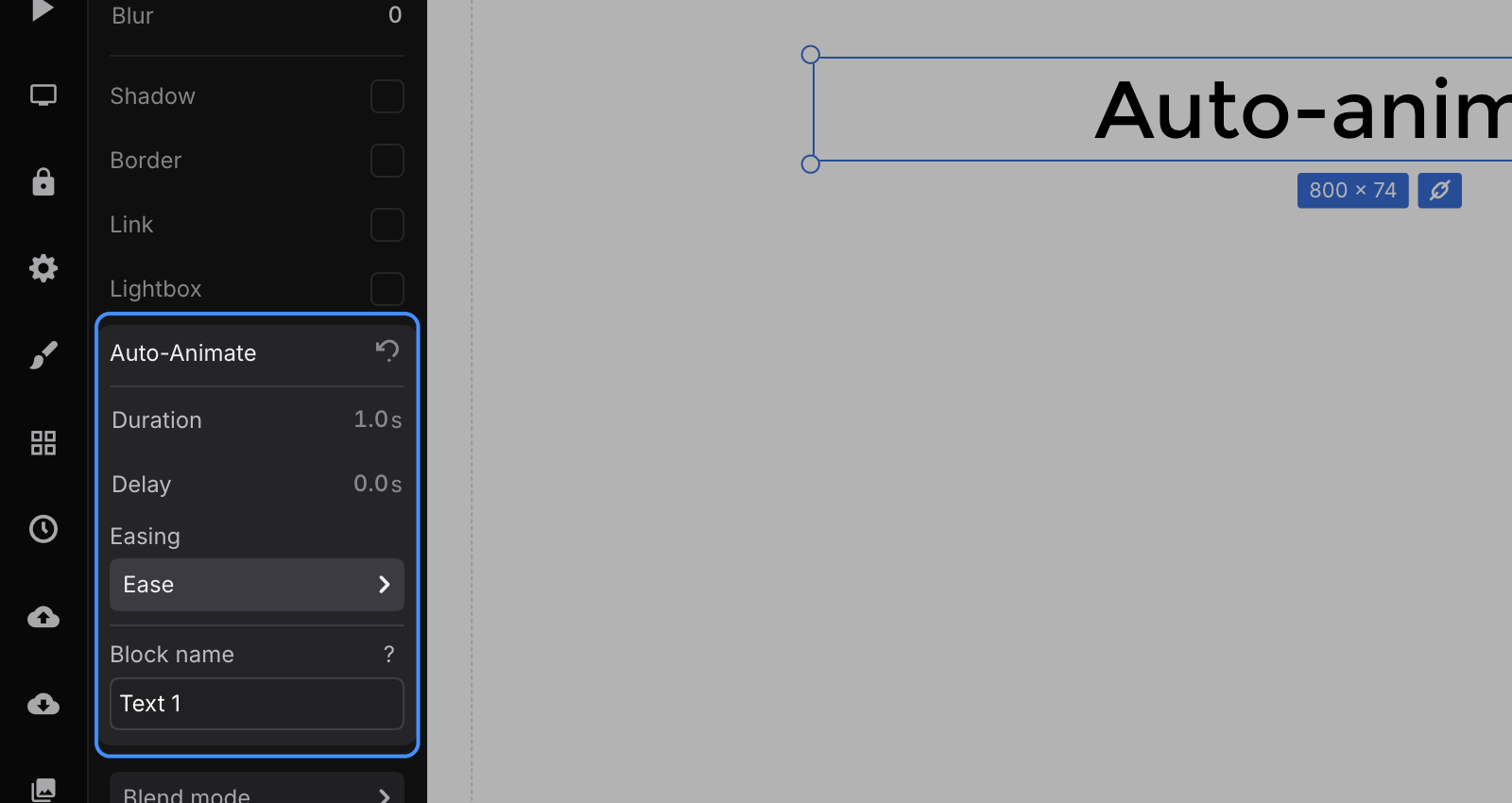
Every block also has a unique name. Blocks without identifiable content, such as shapes, are matched by this name. Copying a block or duplicating a slide preserves the name so the blocks remain connected for animation.
Per-block animation settings
You can configure the animation for each block individually: delay it, change its duration, or use a custom easing function. Select a block on an auto-animated slide and open the Auto-animate options in the block toolbar.
Known limitations
Auto-animate does not currently animate:
- Changes to the coordinates of lines.
- Changes to text alignment.
- Text size set with the inline text toolbar. Text scale set in the block toolbar animates as expected.