Exporting your presentation to HTML is one of the best ways to present offline or host a deck yourself. Unlike PDF exports, HTML exports keep all of their animations and interactivity.
Export your presentation
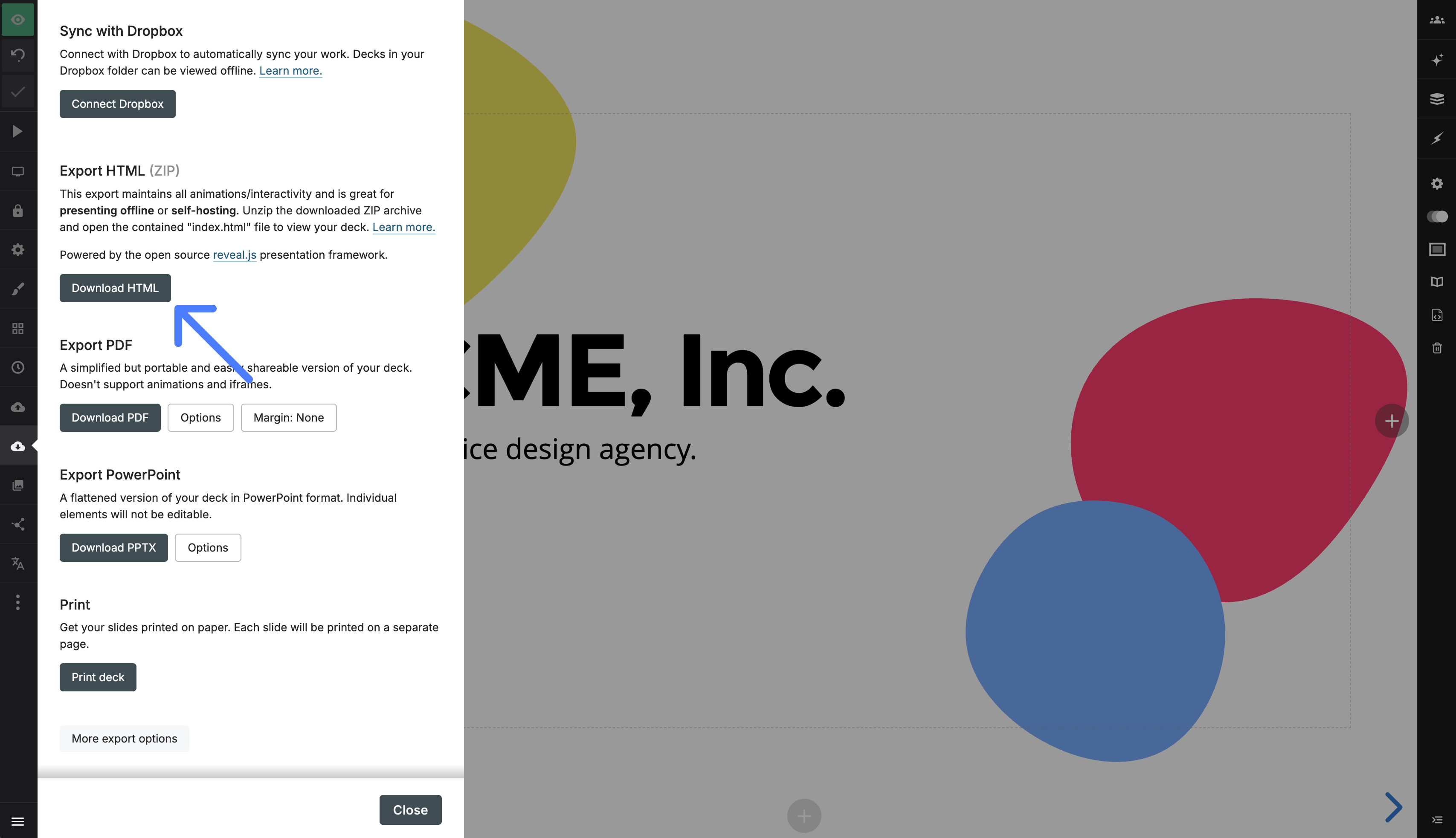
- Open the Export panel in the Slides editor and select Download HTML. Decks with many images may take up to a minute to export.
- Unzip the downloaded file.
- Open
index.htmlfrom the unzipped folder in your web browser.
Speaker view
The downloaded presentation includes a speaker view and any speaker notes you added in Slides. Press S while the presentation is open to launch it.
Presentation options (advanced)
After opening the presentation, add options to the URL as query parameters. For example, append ?controls=false to hide the controls, or ?controls=false&progress=false to hide both the controls and progress bar.
-
controls(trueorfalse) shows or hides the navigation arrows. -
progress(trueorfalse) shows or hides the progress bar. -
loop(trueorfalse) returns to the first slide after the last slide. -
shuffle(trueorfalse) randomizes the slide order. -
autoSlide(number) sets the delay between slides in milliseconds. Use0to disable auto-slide.
File structure
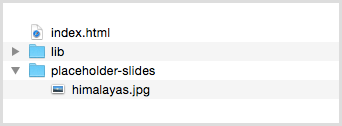
The exported ZIP contains:
-
index.html: the presentation content and any custom CSS. -
lib: CSS, JavaScript, and font files used by the presentation. - A media folder named after your presentation, containing its images and other assets.